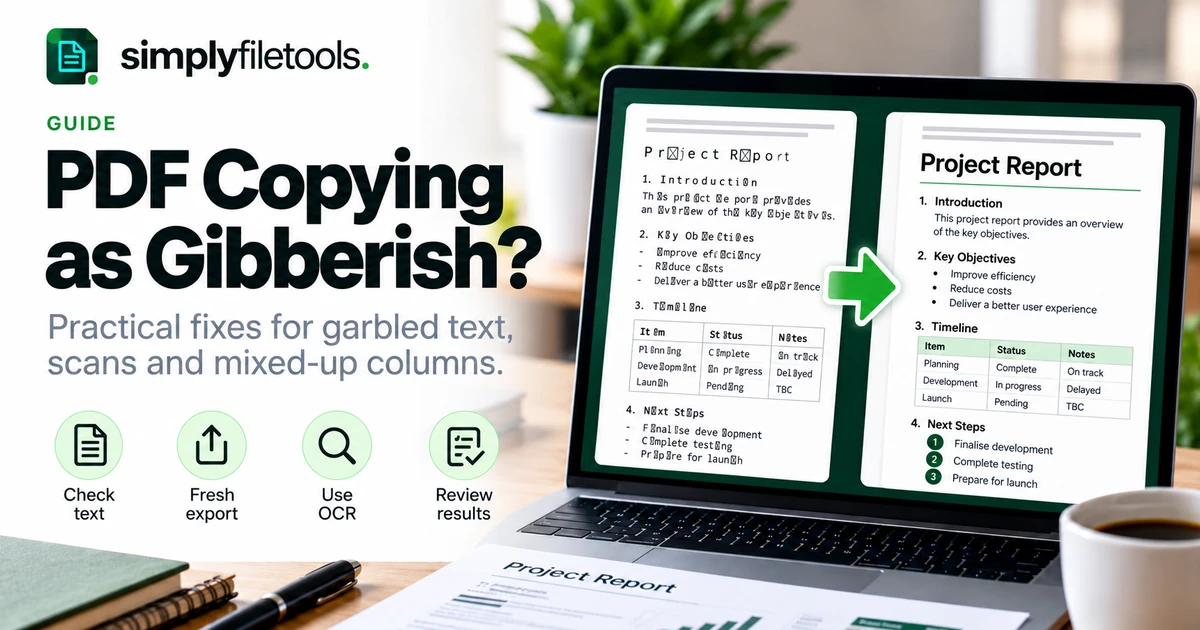
A PDF can look perfectly readable on screen but produce random symbols, missing letters or jumbled sentences when you copy it. The best fix depends on whether the problem comes from the PDF's text data, a scanned page, its layout or the application receiving the pasted text.
This guide helps you identify the cause, choose a sensible recovery method and check the result before using it in a report, email or business document. Keep the original PDF and work on a copy.
Quick diagnosis: what does the pasted text look like?
| Symptom | What to investigate | First step |
|---|---|---|
| Random symbols replace readable letters | Character mapping or extraction compatibility | Try another reader, then obtain a fresh export |
| Nothing can be selected | A scan, outlined lettering or copying restrictions | Check permissions and whether OCR is needed |
| Words are correct but columns are mixed | Reading order | Extract a smaller section at a time |
| Only some pages produce text | A mixture of digital and scanned pages | Check each affected page separately |
| Text is correct in one app but wrong in another | Paste formatting or text encoding | Paste as plain text and check the destination |
Why a readable PDF can contain unusable text
A PDF describes how a page should look. The visible page and the text available for copying are not always equivalent. A reader may display glyphs correctly while extraction cannot reliably map them back to characters. A scan may contain no text at all, or an inaccurate hidden OCR layer.
Layout creates a separate problem: text that appears in two clear columns may be stored in an order that does not match how a person reads it. See the pypdf text extraction documentation for background on these distinctions.
For example, a two-column newsletter might paste the first line of the left column followed by the first line of the right. Those words may be recognised correctly; their sequence needs attention.
Step 1: test one short paragraph in plain text
- Open the original PDF and select a short, ordinary paragraph rather than a table or heading.
- Copy it into a plain-text editor or use your destination application's paste-without-formatting option.
- Compare the pasted text against the visible paragraph.
- Repeat with one paragraph on another page.
Write down whether the issue affects characters, word order, spacing or entire missing sections. This makes the next step more targeted. If only font sizes and colours are wrong, plain-text pasting may be enough. It will not repair characters that were already extracted incorrectly.
If the text looks right in the editor but breaks after saving and reopening a TXT file, check the file's encoding. Save as UTF-8 where supported and reopen it using the same encoding, especially for accented characters and non-Latin languages.
Step 2: try a second reader or extraction method
Open the same PDF in another reputable PDF reader or browser and repeat the short test. If the second application produces correct text, use that result and verify the rest of the document. You do not need to rebuild a file just because one application struggles with it.
You can also try the SimplyFileTools PDF to Text tool as an alternative extraction route. Check the current upload requirements on the tool page and inspect the output before relying on it. A different extractor may help, but no tool can guarantee recovery from every PDF.
If the document is confidential, use a workflow approved for that information. A locally installed reader may be the appropriate starting point for documents you cannot upload.
Step 3: get a fresh export from the source document
If you or the sender still has the original Word document, presentation or design file, request a fresh PDF export. Use the application's normal PDF export feature and check the newly exported file by copying a test paragraph.
Tell the sender exactly what happens: “The PDF displays correctly, but copying the second paragraph gives incorrect characters.” Include the page number and a short non-sensitive example. That is more useful than simply saying the file is broken.
If your goal is reusable text, request the original editable document or a text export as well. Our guide to converting Word to plain text explains the formatting trade-offs. Renaming a PDF file to .docx or .txt does not convert its contents.
Step 4: use OCR when the visible page is the best available source
OCR recognises letters from an image of the page. It is useful when the page is a scan or the existing text layer is unreliable. Start with one representative page and compare the result before processing a long document. Direct extraction is usually preferable when the original digital text already works.
- Choose the clearest available copy of the affected page.
- Rotate it upright and remove unnecessary borders if they interfere with recognition.
- Select the document language if your OCR software offers that setting.
- Run recognition on a working copy and review the output beside the original.
- Check numbers, names, punctuation and any text that was faint or unusually styled.
For the full workflow, read how to extract text from a scanned PDF. If you already have the affected page as an image, see our image text extraction guide or visit the Image to Text tool.
Avoid repeatedly screenshotting or recompressing the same page. Start from the highest-quality source you have. OCR still needs proofreading; a plausible-looking word or amount can be wrong.
Step 5: fix reading order, tables and line breaks
When the letters are correct but the sequence is confusing, work in smaller sections. Copy one column, text box or table at a time. Place each section into your destination document in the order you intend readers to follow.
Position-based sorting can help extraction, but complicated columns still need review. The PyMuPDF FAQ explains why a page's internal text order can differ from its visual layout.
For tables, compare every value with its row and column label. Plain text does not reliably preserve the relationships conveyed by a visual grid. Rebuild a small table manually when that is more dependable than cleaning up a scrambled export.
Remove repeated page headers and footers only after checking that they are not part of the content. Join unwanted line breaks paragraph by paragraph. Do not replace every hyphen or line break across the whole document: that can damage lists, compound words and negative values.
What to do if nothing can be copied
Check whether the PDF reader reports copying restrictions or asks for a password. If access is restricted, ask the owner for an authorised editable or accessible copy. This guide is for recovering text you are permitted to use.
If the file fails to open, download it again from the original source and check whether the replacement opens normally. A fresh download may help with an incomplete transfer. It will not correct a text mapping problem already present in the source file.
If pages are missing or visibly damaged, ask for another copy. OCR can help recognise visible text; it cannot recover words that are absent or unreadable in every available version.
Check the recovered text before using it
- Completeness: compare page beginnings and endings, headings and captions.
- Accuracy: check names, dates, totals, decimal points, currency symbols and reference numbers.
- Structure: confirm paragraph sequence, list numbering and table labels.
- Characters: inspect accented letters and commonly confused symbols such as O and 0.
- Output: save, reopen and check the final file in the application where it will be used.
Keep a record of any sections that still need manual checking. For text used in contracts, financial records or other important documents, compare the relevant passages directly with the original rather than assuming a successful export means an accurate result.
Once the text is checked, you can rebuild its presentation using our guide to formatting a professional report.
Frequently asked questions
Why does my PDF paste as random symbols?
The PDF's visible letters may not map correctly to extractable text. Test another reader, request a fresh export from the original document or use OCR on a copy if the visible page is your only useful source.
Will changing the font fix the copied text?
Changing the destination font may help display characters that are already correct. It does not reliably repair text that was extracted as the wrong characters. Compare the actual words in a plain-text editor first.
Why are some PDF pages blank after conversion?
A document can mix digital text with scanned pages. Check a blank page visually and test whether its words can be selected. Image-only pages need recognition rather than ordinary text extraction.
Should I run OCR on every PDF?
No. Test direct extraction first for a digital document. Use OCR where it solves a specific problem, and check its result. Unnecessary recognition introduces another opportunity for errors.
Can I keep the original layout in a TXT file?
TXT stores plain text rather than designed page layouts. If columns, table structure and exact page appearance matter, retain the PDF and use an editable document format for reconstruction.
What if every method produces poor results?
Ask for the source file or a clearer copy. For a short section, careful manual transcription may be more efficient. Mark uncertain passages and verify them rather than guessing.
Try extracting a representative page or document, then compare the text with the original.
Try PDF to Text →