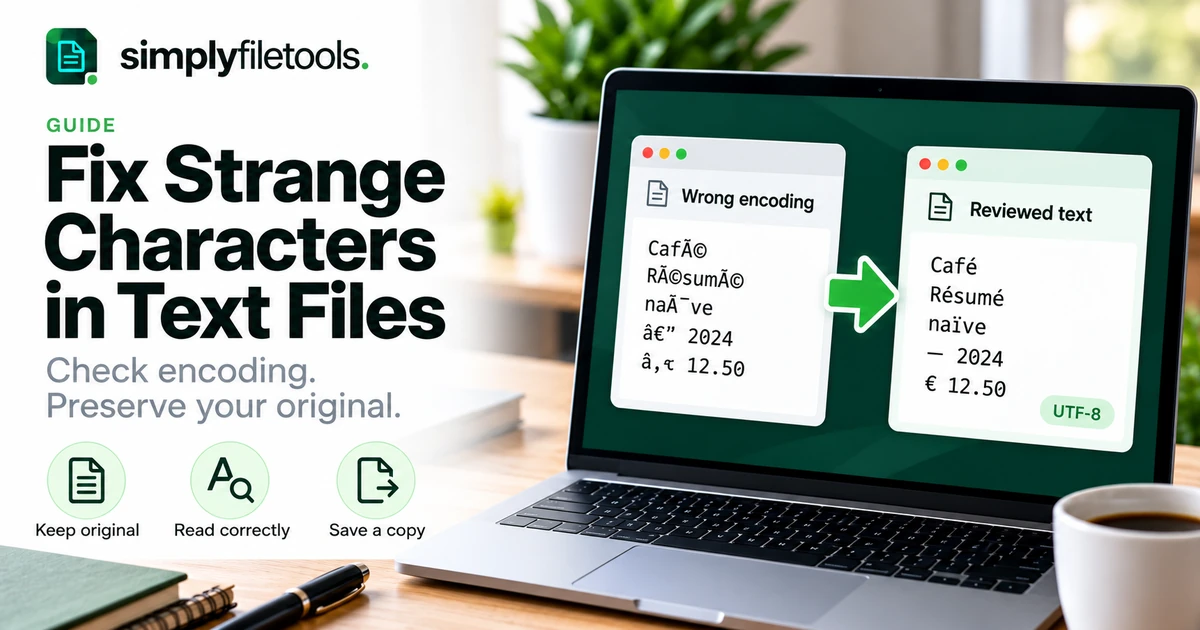
If a text file shows strange characters, preserve the original and check how the file is being opened before changing its contents. The cause may be an encoding mismatch, a missing font, an earlier conversion error or incorrect text extraction. Each needs a different fix.
For example, an accented name may appear as a sequence such as “José”, while another file may show boxes or replacement symbols. Saving immediately can make recovery harder. This guide explains how to diagnose the problem, reopen a working copy correctly and check the result before sharing.
What causes strange characters in a TXT file?
A text file stores bytes that an application interprets using an encoding. If the application interprets them differently from the way they were written, the displayed characters may be wrong. UTF-8 is a widely used Unicode encoding, but a TXT extension alone does not tell you which encoding a file uses.
Other problems can look similar. A font may lack a character, or text extracted from a document may already be incorrect before it reaches the TXT file. Start by identifying the stage at which the problem appeared.
| Symptom | Possible explanation | First check |
|---|---|---|
| Accented letters become sequences such as é | Encoding mismatch or previously misinterpreted text | Reopen an unchanged copy using the known source encoding |
| Boxes appear for some characters | Font coverage or another display problem | Try a suitable font or another viewer |
| Replacement symbols such as � appear | A decoding step may have substituted invalid input | Return to the untouched file or earlier source |
| Letters and numbers are confused after OCR | Recognition error | Compare with the original image |
| Correct words appear in the wrong order | Layout or extraction issue | Compare the document's columns and reading order |
These are clues rather than proof. A file can contain more than one problem, and a familiar-looking pattern does not establish the original text.
Step 1: preserve the original file
Make a separate working copy before testing fixes. Keep the original download or attachment unchanged, and avoid opening it in a workflow that automatically saves changes.
- Keep the source file in a clearly labelled location.
- Create a copy for inspection.
- Note where it came from and which application exported it.
- If possible, ask the sender which encoding was used.
- Locate an earlier DOCX, PDF, image or export that can serve as a comparison.
Use a filename such as “notes-working-copy.txt” so it is easy to distinguish the test file. If you have already saved over one copy, look for the original attachment or a suitable backup before experimenting further.
Step 2: work out where the error starts
Compare the same passage at each stage you can access: original document, extracted-text preview, downloaded TXT and final destination. Record the first stage where the characters become wrong.
If the preview is correct but the TXT looks wrong in one editor, investigate how that editor reads the file. If the preview is already wrong, changing the downloaded file's encoding may not address the source problem.
When PDF copying produces incorrect text, read why PDF text copies as gibberish. When text came from a photo, compare the recognised words with that image before assuming an encoding issue.
Step 3: reopen using the appropriate encoding
Use an editor that lets you choose how to read an existing file. Reopening with an encoding interprets its bytes; saving with an encoding writes a new representation. Do the reading step first and confirm the text before writing a converted copy.
Choose an encoding based on evidence from the source application or sender. Do not cycle through options until a single word looks plausible and assume the whole document is repaired. Check passages containing accents, punctuation and any other scripts.
Example: inspecting a copy in Visual Studio Code
If you already use Visual Studio Code, its encoding control is in the status bar. Microsoft's file-encoding documentation describes reopening or saving with a different encoding.
- Open the working copy without editing it.
- Select the encoding indicator in the status bar.
- Choose Reopen with Encoding.
- Select the known or evidence-based source encoding.
- Compare several representative passages with the original source.
Menu wording can change with the application version. Other editors offer similar controls, but check whether an option reopens the file or converts and saves it.
What about Microsoft Word?
Some desktop Word versions provide encoded-text conversion controls when opening a text file. Microsoft's text-encoding guidance explains the conversion confirmation setting and preview options. Follow the instructions for your edition, and work on a copy.
Worked example: an accented name becomes garbled
Imagine that a UTF-8 file contains the fictional sentence “José reviewed the café notes.” If those bytes are interpreted as Windows-1252, the sentence can appear as “José reviewed the café notes.”
In this example, the correct response is to reopen the unchanged bytes as UTF-8, then check the full sentence and other passages. The task is not to rename the file or replace every occurrence of the letter Ã.
| What happened | What to do |
|---|---|
| The unchanged UTF-8 file is being read incorrectly | Reopen it with UTF-8 and compare the text |
| The garbled display was copied into a new document | Return to the earlier file or source rather than treating the copied text as original |
| Characters were replaced with question marks or replacement symbols | Look for an earlier intact source; do not assume the lost characters can be inferred |
Real files may have a different history. If you do not know the original name or wording, avoid making an unverified correction simply because it produces a familiar word.
Step 4: check fonts and display separately
A box does not always mean that the underlying character is missing. Try a viewer and font appropriate for the language or symbol involved. Compare the same passage in another application without changing the original file.
If changing the font resolves the display, there may be no need to convert the file. Conversely, a different font will not repair a sequence of incorrectly decoded characters. Keep the distinction between what is stored and how it is displayed in mind.
Step 5: save a verified copy for the destination
Once the text reads correctly, save a new copy using an encoding supported by the recipient or destination application. UTF-8 is often a sensible choice for modern text exchange, but follow a documented import requirement when one is specified.
- Confirm that the currently displayed text is correct.
- Use Save As or the editor's equivalent to create a separate output file.
- Select the intended encoding explicitly where available.
- Pay attention to warnings about unsupported characters.
- Close and reopen the output file.
- Test it in the actual destination before processing a larger batch.
Do not ignore a warning that characters will be substituted or lost. A file that saves successfully is not necessarily a faithful copy. Keep accented names, punctuation, currency signs and non-Latin text in your review sample.
When changing encoding will not fix the text
Replacement characters have already been saved
A decoding process can replace invalid input with the replacement character � or discard it. Python's Unicode HOWTO illustrates these error-handling behaviours. Once the original information has been lost from that copy, changing its encoding does not reveal what was removed.
Return to intact bytes or an earlier source. A question mark may also be genuine punctuation, so do not automatically treat every one as damage.
The source extraction is incorrect
If an image recogniser confused O with 0, compare the original image and correct only what it supports. If a PDF extraction has the wrong reading order, investigate the source layout. Those are content problems rather than a simple file-opening mismatch.
The file is not really plain text
A DOCX or PDF renamed with a TXT extension does not become plain text. Open it with an appropriate application or extract the text from its actual format. Avoid editing a binary document as though it were a damaged TXT file.
Using SimplyFileTools in the right part of the workflow
For an intact source document, use Word to Text for supported DOCX files, PDF to Text for PDFs or Image to Text for supported images. Review the extracted text against the source before copying or downloading TXT.
These tools should not be treated as a promise to reverse every historical encoding mistake. Returning to a clear source can be more reliable than repeatedly processing a damaged text copy. For the DOCX workflow, see how to convert Word to plain text.
Frequently asked questions
Will saving as UTF-8 fix every strange character?
No. First decode the source correctly. Saving text that is already garbled as UTF-8 can preserve the garbled wording.
Does changing .txt to another extension repair encoding?
No. Renaming changes the filename, not the stored bytes or their interpretation.
Why does the same file look different in two applications?
The applications may choose different encodings or fonts. Compare their reading settings before editing the content.
Can missing letters always be recovered?
No. If information was discarded or replaced and no intact source remains, the original letters may not be recoverable from that copy.
Should I remove all unusual symbols?
No. Accents, punctuation and symbols may be valid content. Check the source rather than deleting characters that look unfamiliar.
How can I reduce problems when sharing TXT files?
Agree on an encoding, save a checked copy, and test it in the receiving application. Keep the source document and avoid repeated unverified conversions.
Fix the cause before saving the result
Preserve the original, identify where the problem begins, reopen with the appropriate encoding and check the final destination. When the source itself is damaged or misread, return to a clearer original rather than guessing the missing text.
Use the relevant SimplyFileTools extraction tool when you need fresh wording from an intact document, then compare the result before sharing.