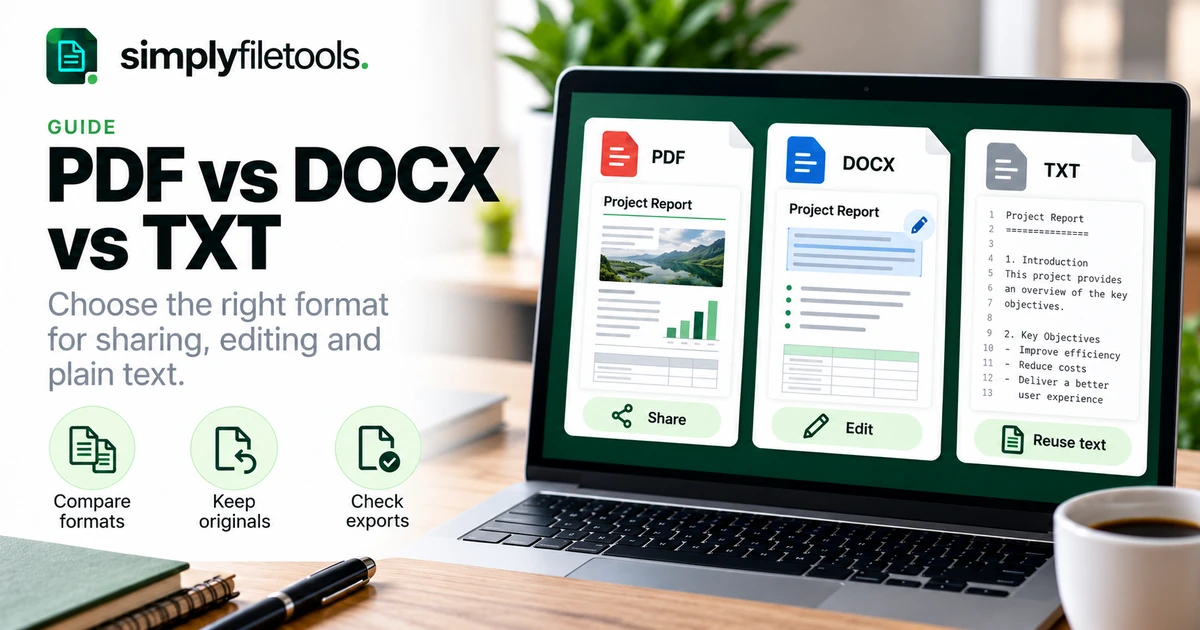
Use PDF when readers need a consistent page layout, DOCX when they need to edit a structured document, and TXT when you only need plain wording. The best choice depends on what the recipient must do next, not simply on which file is smallest or easiest to create.
A report might need all three: DOCX for revisions, PDF for distribution and TXT for moving selected wording into another system. This guide compares the formats, explains what conversion can lose and shows how to choose an appropriate version without discarding your original.
PDF, DOCX and TXT at a glance
Each format serves a different purpose. Start with the task, then check the recipient's requirements before exporting.
| Question | DOCX | TXT | |
|---|---|---|---|
| What is its main strength? | Presenting a fixed page layout | Editing structured, formatted documents | Storing and reusing plain text |
| Does it support designed pages? | Yes, with positioned page content | Yes, though rendering can vary by application | No designed page layout |
| Can it contain images? | Yes | Yes | No embedded images |
| Is it convenient for routine text editing? | Usually less convenient than the editable source | Yes, in a compatible editor | Yes, without rich formatting |
| What should you check? | Page appearance and text usability | Compatibility, layout and review material | Completeness, encoding and reading order |
This is a practical comparison, not a guarantee about every file. A PDF may be a scan or contain selectable text. A DOCX can contain complex objects. A TXT file can still contain incorrect or incomplete wording.
When to choose PDF
PDF is useful when the appearance of the page matters: a final proposal, a report for reading, a brochure or a document intended for printing. Its page-based structure helps preserve the intended placement of text and graphics.
Keep the editable source as well. A PDF is not necessarily impossible to edit, and sending one does not by itself protect the document from changes. Its practical advantage is presenting a reference layout rather than providing the most convenient environment for rewriting.
PDF checks before sharing
- Open the exported file and inspect every page.
- Check tables, images, page breaks, links and page numbers.
- Try selecting and searching the text where that matters to the reader.
- Confirm that no pages are missing or unexpectedly blank.
- Check any specific submission requirements supplied by the recipient.
Do not assume that a neat-looking PDF is automatically accessible or contains usable text. Scanned pages may need recognition, and accessibility requires more than the choice of filename extension.
When to choose DOCX
DOCX is useful for a document that still needs editing: a draft report, a proposal under review, a reusable letter or a document with headings, tables and images that someone must revise.
A compatible word processor can work with its content and formatting, but the appearance may change between applications. Missing fonts, different layout behaviour or unsupported features can affect the result. Ask the recipient which editor or format they expect when compatibility is important.
If someone cannot open the file in their usual application, see how to open a DOCX without Microsoft Word for alternative approaches.
DOCX checks before sharing
- Confirm the recipient needs an editable copy.
- Review comments and tracked changes and decide what should be included.
- Check headers, footers, text boxes, tables and embedded objects.
- Reopen the saved file in the intended application where practical.
- Use a clear filename so the current revision is easy to identify.
When the exact layout matters during review, a reference PDF alongside the editable file can help people distinguish content changes from display differences.
When to choose TXT
TXT is useful when you want the words without document styling. Examples include pasting a paragraph into a form, preparing text for another workflow, making searchable notes or removing formatting carried over from a word processor.
A plain-text file stores characters and line breaks rather than rich document features. It does not embed images, preserve font choices or represent a designed table in the same way as a DOCX or PDF. Tabs and spaces can suggest columns, but their appearance and interpretation can vary.
Use a suitable character encoding, commonly UTF-8, and check that the application opening the file interprets it correctly. Accented letters, currency symbols and non-Latin text are worth checking after saving and reopening.
TXT checks before using it
- Confirm that all required wording is present.
- Check paragraph and list order.
- Compare table labels and figures with the original.
- Inspect punctuation, symbols, names and reference codes.
- Reopen the file to check character display.
Keep the original formatted document when it provides context that the text alone cannot carry.
Choose a format for the recipient's next task
“Please send the document” is often not specific enough. Ask whether the recipient needs to read it, edit it, print it or import its text.
| Situation | Useful starting choice | Why |
|---|---|---|
| A client needs to read a finished proposal | Provides a clear reference layout | |
| A colleague needs to revise paragraphs and tables | DOCX | Preserves an editable document structure |
| You need wording for a plain-text form | TXT or reviewed plain-text copying | Avoids carrying over rich formatting |
| A reviewer needs edits and a layout reference | DOCX plus PDF | Separates the working document from the reference view |
| A system specifies a particular upload format | The required format | Submission requirements take priority |
Check the actual requirements rather than assuming that every recruitment portal, client system or document workflow accepts the same format.
What can be lost during conversion?
Conversion changes the representation of the document. Some changes are expected, such as losing fonts when exporting plain text. Others require investigation, such as a missing paragraph or an amount detached from its label.
DOCX to PDF
Inspect the exported pages for clipping, changed pagination and missing content. Keep the DOCX if you expect to revise the document later. The PDF export should be reviewed as a separate file, even when the source looks correct.
PDF to TXT
The wording may be available for extraction, but the reading order can need correction. Columns, captions and page furniture can interrupt paragraphs. Scans require recognition rather than ordinary extraction, and recognition results need checking.
Use the PDF to Text tool for supported files and follow our guide to extracting PDF text for free for a practical review workflow.
DOCX to TXT
Expect the visual design to disappear. Check lists, tables, text boxes and other special content rather than assuming every part of the document is represented in plain text.
The Word to Text tool provides free text review, copying and TXT downloads for supported DOCX files. See how to convert Word to plain text for the detailed steps and limitations.
TXT to a formatted document
You can use the wording as the basis for a new document, but the original styling does not automatically return. Rebuild headings, lists and tables deliberately, and use the original as a reference when available.
A practical example: one report, three useful versions
Imagine you prepare a fictional project status report containing a summary, a milestone table and a chart. Your manager needs to revise the wording, your client needs a reference copy and an internal system needs a short text update.
- Keep the working DOCX. Use it for editing and reviewed changes.
- Export a PDF. Check the chart, table and page breaks before sending the client version.
- Prepare the required plain text. Copy or extract the relevant update, check it and add any labels needed to preserve meaning.
- Name the files consistently. Keep the same project and revision reference, with the appropriate extension.
- Store the source and outputs together. Make it clear which file is the current editable version.
The text update should not replace the full report when the chart and table are essential. It serves a different purpose for a different destination.
A safer conversion checklist
Use the same short process whenever you change formats:
- Keep an unchanged copy of the source file.
- Identify what the recipient or destination requires.
- Choose the appropriate export or extraction method.
- Open the output separately and compare it with the source.
- Check the details most likely to change: tables, symbols, numbers and special objects.
- Save a clearly named final version and retain the editable source where needed.
For online tools, check current format and size limits before uploading. Use an approved workflow for sensitive information. Free extraction, where offered, still has processing and usage conditions; do not assume unlimited or entirely local processing.
Common file-format problems and fixes
I renamed the extension but the file will not open
Renaming .docx to .pdf or .txt does not convert the underlying contents. Return to the original file and use an appropriate export or conversion function.
My TXT file has no images or proper table layout
That is a limitation of plain text. Keep the formatted source, rebuild essential structure in the destination or choose a format that supports it.
The DOCX looks different on another computer
Check fonts and application compatibility. Use a PDF reference to compare the intended page appearance and inspect the final file in the recipient's workflow where possible.
The PDF contains text but copying produces errors
Compare a short passage using another reader or extraction method. Check whether the issue is incorrect characters, an inaccurate recognition layer or reading order. Obtain a fresh source export if available.
The file is smaller, but important content is missing
File size alone does not establish conversion quality. Compare the output with the source and use a format that can preserve the information you need.
Frequently asked questions
Is PDF always better than DOCX?
No. PDF is useful for a reference layout, while DOCX is usually more convenient for editing a structured document. Follow the recipient's needs.
Is TXT the same as a Word document with no formatting?
They can display similar wording, but they are different file formats. DOCX can retain document features that TXT does not represent.
Can I edit a PDF?
Suitable applications can edit some PDF content, but the editable source is generally a more practical starting point for substantial revisions.
Does converting to TXT guarantee accurate text?
No. Extraction or recognition can miss content or change its order. Review the result against the source before relying on it.
Which format is smallest?
It depends on the content and how the file was created. A plain-text version of ordinary prose is often small, but it also excludes images and rich layout. Choose by information needs first.
Can SimplyFileTools extract text for free?
Yes, supported text extraction, review, copying and TXT downloads are free, subject to current limits. Optional professionally formatted document downloads are a separate service.
Choose the format that preserves what matters
Use PDF for the reference page, DOCX for the editable document and TXT for plain wording. Keep the source and review every conversion for completeness, accuracy and suitability for its destination.
Explore the SimplyFileTools free text extraction tools when you need reusable wording from supported files. If you are rebuilding a formatted document, browse the document templates and review the layout using your own content.