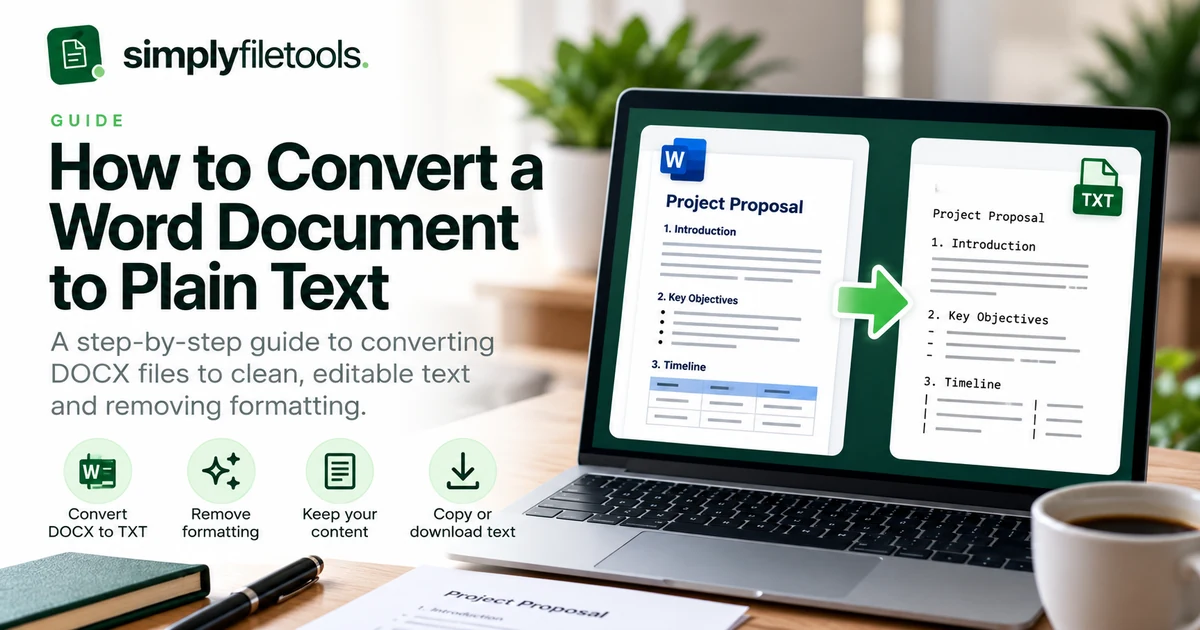
A Word document is useful when you need headings, tables, fonts and page layouts. But sometimes you only need the words. Converting a DOCX file to plain text makes its content easier to copy, search, edit and reuse without carrying over unwanted formatting.
In this guide, you will learn how to convert a Word document to TXT using SimplyFileTools Word to Text or Microsoft Word, what information plain text can and cannot preserve, and how to check the result.
What is a plain text (TXT) file?
A TXT file contains text characters and line breaks without Word's visual formatting. It is widely compatible with text editors, programming tools and other applications. Unlike a DOCX document, a plain text file does not preserve fonts, text colours, embedded pictures, page margins or complex table layouts.
Converting to TXT is useful when you want to reuse paragraphs, prepare material for another system, remove unwanted formatting or work with content in a lightweight file. It is not a substitute for a faithful Word-to-Word conversion.
How to convert DOCX to TXT using SimplyFileTools
- Open the free Word to Text tool.
- Choose your DOCX file. The tool supports DOCX rather than older DOC files.
- Follow the on-screen upload and security verification steps, if requested.
- Allow the document to be processed. More complicated files may take longer.
- Review the extracted text against the original document, paying particular attention to headings, tables, names, dates and numbers.
- Use Copy text or Download TXT to keep the plain-text result.
Text extraction, copying and TXT downloads are free. Optional professional document formatting and downloads are a separate service. Check the current file-size and processing limits displayed in the tool before uploading.
How to save a Word document as TXT in Microsoft Word
If you already have Microsoft Word installed, you can export plain text directly:
- Open your document in Word.
- Choose File → Save As (or Save a Copy, depending on your version).
- Select the destination folder and choose Plain Text (.txt) as the file format.
- Save the file and, if prompted, choose an appropriate text encoding. UTF-8 is a good default for multilingual text.
- Open the TXT file in a text editor and inspect the content.
Word's menus differ between Windows, macOS and web versions. If your version does not offer a TXT export option, use a desktop version or a suitable text-extraction tool instead. Keep the original DOCX file unchanged.
What happens to formatting, tables and images?
Plain text keeps words and basic line breaks, but visual layout does not reliably survive. Before relying on a conversion, understand what may change:
| Word content | What to expect in TXT |
|---|---|
| Paragraphs | Text usually remains, although spacing and line wrapping may change. |
| Headings and fonts | Words remain, but heading styles, fonts, colours and sizes are removed. |
| Bulleted or numbered lists | Items may be retained, but bullets, indentation and numbering may change. |
| Tables | Cell text may appear in reading order without the original rows and columns. |
| Images, charts and drawings | Visual content is not represented as ordinary text; embedded text may be missed. |
| Headers, footers and text boxes | Availability and reading order vary by converter and document structure. |
For invoices, reports or documents containing figures, compare the plain-text output with the original. A number appearing in the wrong row or column can change its meaning.
How to keep the content accurate
Start with the original DOCX rather than a screenshot whenever possible. Use a well-structured document with clear headings and readable tables. After conversion, check the beginning, middle and end of the file instead of assuming that a successful download means the text is complete.
Pay special attention to currency symbols, accented characters, mathematical notation, footnotes and multi-column sections. If characters appear as question marks or strange symbols, try saving the TXT file with UTF-8 encoding or opening it in an editor that supports UTF-8.
Common DOCX to TXT problems
My file will not upload
Check that it is a supported .docx file and is within the limits shown on the upload page. Older .doc and macro-enabled .docm files are not supported by the current SimplyFileTools upload flow. You can save a compatible copy as DOCX in Word first.
Some text is missing
Check text boxes, headers, footers, embedded objects and images. Not every type of content is extractable as text. If the missing words are inside an image, you may need image OCR instead.
My tables are difficult to read
TXT cannot preserve a proper Word table grid. For important figures, inspect each row and column manually. If you need to retain the visual layout, keep the DOCX or use a formatted document instead of plain text.
The output has strange characters
This is often an encoding mismatch. Try UTF-8 when exporting from Word, then open the file in a modern text editor. Also check quotation marks, dashes, symbols and non-English characters.
When should you keep the DOCX instead?
Keep your original Word file whenever you need formatting, images, precise tables, page numbers, comments or track changes. TXT is best for reusable text, not for preserving the appearance or full semantics of a document.
If you need a professionally styled PDF and editable Word document, explore the SimplyFileTools document templates. For an overview of available extraction formats, see the free tools page.
Frequently asked questions
Can I convert DOCX to TXT for free?
Yes. SimplyFileTools offers free text extraction and TXT download for supported DOCX documents, subject to the current processing and security limits shown on the website.
Will a TXT file preserve my Word formatting?
No. TXT stores plain characters and line breaks, not fonts, colours, page design or complex table formatting.
Can I convert an old DOC file?
The current SimplyFileTools uploader supports DOCX, not the older DOC format. Open the DOC in compatible software and save a DOCX copy first.
Can I turn the TXT file back into a Word document?
Yes, you can open or paste plain text into Word and save it as DOCX. However, the original formatting will not automatically return.
Is plain text better for copying into other applications?
Often, yes. Plain text avoids carrying Word's fonts and styling into the destination, although you should still check line breaks and any table data.
Convert your Word document to text
For a straightforward DOCX-to-TXT workflow, use SimplyFileTools Word to Text, review the result carefully, then copy or download the extracted text for free.