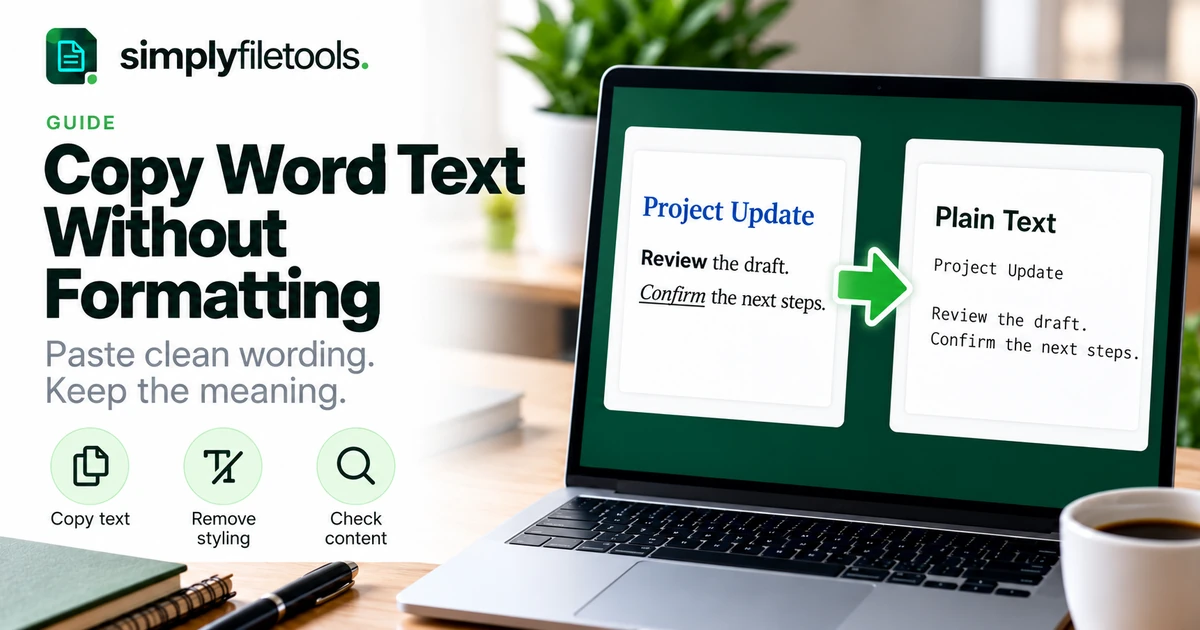
To copy text from Word without formatting, copy the passage and choose the destination application's plain-text paste option. In Word, look for Keep Text Only. This removes the source styling, but the pasted words can still adopt the font and paragraph settings of the destination.
If you need reusable wording from a whole supported DOCX file, you can also extract its text and download TXT. This guide explains when each method helps, how to avoid bringing across unwanted styling and what to check when lists, tables or links lose their structure.
What does copying without formatting mean?
A normal copy operation can place both wording and formatting information on the clipboard. The receiving application decides what to use when you paste. That is why a paragraph from Word can arrive in an email with a different font, colour or spacing from the surrounding text.
Plain-text pasting focuses on characters rather than the source's visual styling. It is useful when moving wording into a form, a content editor or another document with its own design. It does not guarantee that the resulting words are complete, accurate or arranged as intended.
Keep your original Word document. Removing source styling from a pasted copy is different from preserving all of the document's features.
Choose the method for your task
| What you need | Method to try | Check afterwards |
|---|---|---|
| One paragraph in another document | Copy, then choose plain-text paste | Destination font, spacing and complete wording |
| Text pasted into Word | Keep Text Only | The destination paragraph style |
| Wording from a supported DOCX file | DOCX text extraction | Lists, tables and special content |
| A reusable plain-text file | Reviewed TXT export or download | Character display after reopening |
| A table that must retain its structure | A compatible table workflow | Rows, columns and labels remain associated |
Test a short selection first when the destination's behaviour is unfamiliar. This is easier to undo and review than pasting a long document and cleaning it afterwards.
Step 1: copy a complete, relevant passage
Select the wording you need in Word, checking the start and end of the selection. Avoid including an unrelated heading, footer or adjacent table unless it belongs in the result.
For example, if you are copying a client-update paragraph into an email, check whether the final sentence is on the next page. A clean-looking paste is not useful if the selection omitted part of the message.
Copy rather than cut when you want to preserve the original. Work in a separate destination document if you are experimenting with the layout.
Step 2: choose plain-text paste in the destination
Look in the receiving application's Edit menu, paste menu or context menu for wording such as “Paste as plain text”, “Paste text only” or “Paste without formatting”. Names and keyboard shortcuts vary, so do not assume that one shortcut works identically everywhere.
In Word, Keep Text Only is the option for discarding source formatting and non-text elements. Merge Formatting can retain some emphasis, so it is a different choice. Microsoft explains these options in its paste-formatting guidance.
Try the paste option on a short paragraph and inspect the result before repeating it for the rest of the material.
Word for the web
Microsoft documents text-only pasting in supported browsers using Ctrl+Shift+V on Windows or Command+Shift+V on Mac. See its Office for the web clipboard guidance for browser-specific details. These shortcuts should not be assumed to apply to every desktop editor.
Step 3: inspect the destination paragraph
Text-only pasting does not mean that the destination becomes visually unstyled. In Word, the result can inherit the formatting at the insertion point. If it still looks too large or widely spaced, inspect the destination paragraph style and the formatting immediately around it.
A useful check is to paste into a new paragraph with the intended body style already applied. If the wording looks right there, the original destination settings were likely contributing to the appearance.
Avoid repeatedly pasting the same passage without checking the existing content. You can create duplicate sentences or hidden extra paragraphs while trying different options.
Use a plain-text editor as an intermediate step
If the destination offers no obvious plain-text paste option, you can copy the wording into an editor operating in plain-text mode, then copy it from there into the final application.
- Open a plain-text editor or switch a suitable editor to plain-text mode.
- Paste a short selection from Word.
- Check that the wording is complete and readable.
- Copy the reviewed text from the editor.
- Paste it into the destination and inspect the result.
This is a practical fallback, not a way to preserve complex document structure. Confirm that the intermediate editor is actually using plain text rather than rich text. Keep the original document open for comparison.
Extract text from a DOCX when you need more than a passage
For a whole supported DOCX, the SimplyFileTools Word to Text tool provides free extracted-text review, copying and TXT download. It is useful when you need the wording rather than the original page design.
- Open Word to Text and check the current supported formats and limits.
- Choose your DOCX and follow the upload steps.
- Complete any security check shown.
- Compare the extracted wording with the source.
- Correct missing or misordered content where necessary.
- Copy the reviewed text or download TXT for free.
Optional professionally formatted document downloads are separate from free text extraction. Do not assume that TXT reproduces images, designed pages or complex tables.
Read how to convert Word to plain text for the full file-conversion workflow. If you need an editor for the source itself, see how to open DOCX without Microsoft Word.
Worked example: moving a project update into an email
Imagine a fictional Word report uses a large blue heading, shaded paragraphs and a numbered action list. You need to email a short update using your normal email style.
- Select the update paragraph and its relevant actions.
- Copy the selection and paste using the email editor's plain-text option, if available.
- Check that all action wording remains present.
- Rebuild the list using the email editor's own list controls if needed.
- Confirm the names, dates and intended sequence before sending.
The goal is to reuse the content in the destination's structure. If the numbering represents a required sequence, check it explicitly. If a bold phrase carries a warning, make sure its meaning remains clear after the emphasis is removed.
For example, “Do not publish before approval” must remain intact even when its original red text disappears. Removing styling should not remove the instruction's significance.
What needs extra checking?
Bullets and numbering
Check every item and the intended order after pasting. Where the destination supports lists, apply its own list formatting to the reviewed text. Do not mistake a lost bullet for a missing item, or assume that a visible number still means the sequence is correct.
Tables
Plain wording does not provide the same structure as a visual table. If values appear as separate lines or paragraphs, compare them with their original row and column labels. Use a structured destination when those relationships must remain explicit.
Links
A visible label such as “Project folder” does not itself reveal the link address. Check whether the destination retained the link you need. If necessary, copy the address separately and add it deliberately after verifying it.
Images and special content
Check text boxes, captions, notes and other document elements separately. Do not assume that copying the body text or extracting a file includes every piece of content. Keep the source when images or layout are part of the message.
Common problems and fixes
The font still looks wrong
Inspect the destination style and insertion point. Test a short passage in a fresh body paragraph or a plain-text editor to distinguish source styling from destination formatting.
Paragraphs have large gaps
Check whether there are extra empty paragraphs or paragraph-spacing settings. Adjust the destination's paragraph style rather than deleting all line breaks across the text.
The copied text is incomplete
Review the original selection boundaries and special document elements. Try smaller selections so you can identify where material was missed.
The table no longer makes sense
Return to the source and match values to their labels. If your destination needs a real table, rebuild one there or choose a format that retains the required structure.
Characters change after saving TXT
Check the text encoding used for saving and opening. UTF-8 is a useful choice for multilingual text where supported. Inspect names, symbols and punctuation after reopening.
I actually need the original layout
Keep the formatted source or share an appropriate reference version. Our PDF, DOCX and TXT comparison explains which format suits editing, page presentation and plain wording.
Frequently asked questions
Does copying without formatting change the original Word file?
Copying and pasting into another location leaves the source content in place. Keep a separate working copy if you plan to make edits or remove formatting within the original document.
Is Merge Formatting the same as plain text?
No. It can retain some source emphasis. Use the text-only option when your goal is to discard source styling.
Why does plain text still have a font?
Applications need a visual font to display characters. Plain-text pasting removes the source's styling; the destination controls how those characters look.
Will plain-text pasting keep my table?
Do not rely on it to preserve the original table structure. Check labels and values and use a suitable structured format when needed.
Can I get plain text from DOCX for free?
Yes. SimplyFileTools provides free text review, copying and TXT downloads for supported DOCX files, subject to current limits.
Should I always remove formatting?
No. Use it when you need clean wording in another layout. Keep formatting when tables, emphasis, images or page structure are important to the task.
Paste clean wording and check what remains
Choose the destination's text-only paste option, inspect its paragraph settings and verify the content. Rebuild meaningful lists, links and tables deliberately rather than relying on appearance alone.
Use SimplyFileTools Word to Text when you need reviewed wording from a supported DOCX, or explore the free text extraction tools for other source files.