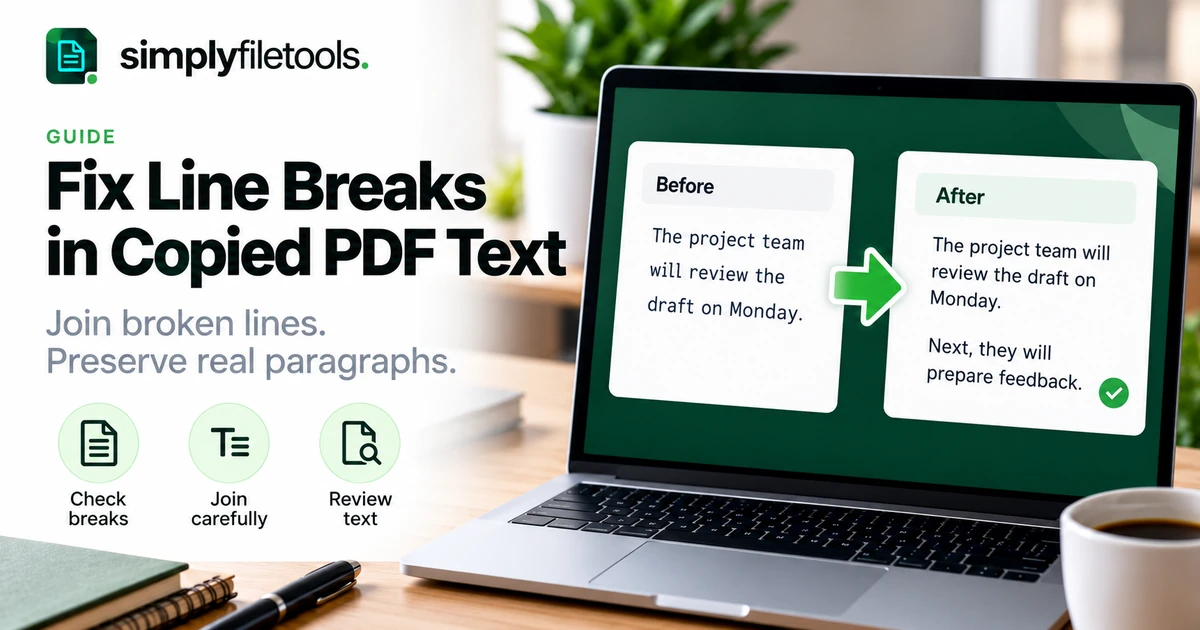
To fix line breaks after copying text from a PDF, compare the pasted wording with the original, identify breaks inside paragraphs and replace only those breaks with spaces. Keep genuine paragraph boundaries, headings and list items separate. Treat hyphenated words and tables as individual checks rather than applying one replacement to the whole document.
Copied PDF text often reflects the printed line layout instead of flowing naturally in your editor. This guide explains how to diagnose the problem, repair a short passage, use find and replace carefully and check that the result still means the same thing.
Why does copied PDF text break after every line?
A PDF presents content in positions on a page. The text available for copying does not always carry the same paragraph structure that a reader sees. An extraction method may insert breaks where printed lines end or include page headers among the body text.
The source can also have several columns, narrow text boxes or a recognition layer from a scan. These introduce different problems. Joining lines will not fix words that have been extracted in the wrong order or recognised incorrectly.
Start with a short representative passage. If the letters themselves are wrong, use our guide to PDF text copying as gibberish before spending time on paragraph cleanup.
Distinguish line wrapping from stored breaks
A line can end because the editor window is narrow, or because the text contains a stored break. These look similar on screen but need different treatment.
| What you see | What to check | What to do |
|---|---|---|
| Text moves when the window width changes | It may be ordinary visual wrapping | Adjust the view; do not delete breaks that are not there |
| Every short line remains separate | The paste may contain stored line or paragraph breaks | Inspect the separators and join only the unwanted ones |
| A heading joins a paragraph | A meaningful boundary was removed | Restore the heading separation |
| Words from different columns alternate | The reading order is incorrect | Recover each column or section separately |
| A word is split with a hyphen | It may be a line-ending split or a genuine hyphen | Check the word against the PDF before editing |
If your editor can display nonprinting characters, turn that view on to help identify the stored separators. In a word processor, a paragraph mark and a manual line break can behave differently. Use the source page to decide which boundaries matter.
Step 1: preserve the original and make a working copy
Keep the PDF open beside a copy of the pasted or extracted text. Save the unedited text separately if you plan to use bulk replacements. This gives you a way to compare the result and undo a mistaken cleanup.
Choose a section containing ordinary paragraphs first. Leave tables, addresses, poetry, code and other intentionally line-based content out of an initial replacement pass.
Check the first and last sentence of the selection. Do not start by cleaning an incomplete passage, because a tidy result can conceal missing text.
Step 2: repair a short passage manually
For a few paragraphs, manual editing is often the clearest approach. Work through the text in reading order rather than deleting breaks randomly.
- Locate a break that interrupts one paragraph.
- Check the words on both sides against the PDF.
- Replace the break with a single space when it separates words.
- Keep a proper paragraph boundary where the source starts a new paragraph.
- Review punctuation and any split words.
- Read the finished passage as a whole.
For example, joining “review the” and “draft on Monday” requires a space. Removing the break without one creates “thedraft”. A word split within its letters may need a different edit, explained below.
Step 3: use find and replace on a controlled section
When many lines share the same problem, find and replace can save time. First establish which separator the text actually contains, then test a small section with a visible before-and-after comparison.
In Word, the advanced find-and-replace tools can search for special characters such as paragraph marks and line breaks. Use the Special menu where available rather than guessing a code. Microsoft describes the controls in its find-and-replace guidance. Menu locations vary by edition and platform.
- Save a working copy.
- Place one ordinary paragraph in a temporary document, or use a verified selection-only scope.
- Open the replacement controls and choose the relevant break type.
- Use a single space as the replacement for an unwanted separator between words.
- Review individual matches before considering a bulk change.
- Compare the repaired paragraph with the PDF before expanding the operation.
A selection does not guarantee that every application's replacement command is limited to it. Check the scope and any prompts. A temporary document containing only the intended passage reduces that uncertainty.
Do not replace every break across the file
A global replacement can merge headings, paragraphs and separate list items. A familiar shortcut that protects double breaks and removes single breaks is only suitable when the text consistently uses that pattern. Many PDF exports do not.
For example, two adjacent paragraphs may have only one separator, while an unwanted page gap may contain several. The number of breaks alone does not reliably identify the document's structure.
Work section by section, preserving meaningful boundaries. If cleanup makes the text difficult to compare with the source, return to a smaller selection.
Step 4: handle hyphens and split words separately
A hyphen at a printed line ending can indicate a word split across lines, but it can also belong to the word. Do not remove every hyphen while joining text.
- Line-ending split: a word printed as “infor-” on one line and “mation” on the next may need joining as “information”.
- Genuine compound: “well-known” needs its hyphen if that is the intended wording.
- Codes and references: a hyphen in an identifier may be significant.
- Negative values: a minus sign should not disappear during cleanup.
Check the original word and its context before editing. If the source is unclear, mark the uncertainty rather than allowing an automatic rule to choose the meaning.
Worked example: joining paragraphs without losing a list
The following fictional extract contains unwanted breaks inside two paragraphs, followed by a list:
The project team
will review the draft
on Monday.Please send the final
comments before the meeting.Items to bring:
1. Updated schedule
2. Draft budget
The reviewed result should read:
The project team will review the draft on Monday.
Please send the final comments before the meeting.
Items to bring:
- Updated schedule
- Draft budget
The first two paragraphs flow naturally, but their boundary remains. The list keeps two separate items. Replacing every separator with a space would make the result harder to read and could obscure the intended structure.
Step 5: remove page furniture and repair reading order
Repeated page titles, footers and page numbers can appear between sentences after extraction. Compare each occurrence with the source before removing it. A number in the body may be meaningful rather than a page marker.
For columns, copy or extract a smaller relevant section and put the reviewed content in the intended order. If the output interleaves two columns, joining consecutive lines will produce sentences that never existed in the source.
Handle tables independently. Preserve the relationships between row labels, values and column headings rather than trying to turn the whole grid into a paragraph. Use a structured destination if those relationships must remain visible.
Try another extraction route when cleanup is excessive
If direct copying produces difficult output, compare a representative passage using the SimplyFileTools PDF to Text tool. It provides free text review, copying and TXT downloads for supported files, subject to current limits.
Read the requirements on the tool page, follow the upload steps and inspect the extracted result. A different extraction route may help, but it does not guarantee automatic paragraph repair or preservation of tables.
See how to extract PDF text for free for the complete workflow. Keep the original and check any revised result before relying on it.
Step 6: check the text in its final destination
After repairing the wording, paste or save it in the application where it will be used. Its paragraph settings can affect the appearance even when the underlying breaks are correct.
If unwanted fonts or spacing travel with the content, our guide to copying text without formatting explains text-only paste options. Those options remove source styling; they do not necessarily remove stored line breaks.
- Compare the first and last sentence of each section.
- Check that headings and paragraphs remain separate.
- Verify list items and numbering.
- Inspect joined words, hyphens, codes and negative values.
- Save, reopen and check the final text.
Choose a suitable output format. The PDF, DOCX and TXT comparison explains the difference between a reference layout, an editable document and plain wording.
Common problems and fixes
The text still wraps after joining lines
Check whether it is now normal visual wrapping caused by the window width. Widen the view or inspect the stored separators before deleting more content.
All paragraphs became one block
Undo the replacement or restore the working copy. Rebuild genuine paragraph boundaries using the source and repeat the cleanup on a smaller section.
Words have run together
Check whether breaks between separate words were replaced with nothing. Restore a space where required, while reviewing actual split words separately.
Blank gaps remain between paragraphs
Distinguish extra empty paragraphs from paragraph-spacing settings. Adjust the relevant cause instead of removing every break.
The text is in the wrong sequence
Return to the source layout and recover individual columns or sections. Break removal alone cannot repair a mixed reading order.
Frequently asked questions
Can I remove all PDF line breaks at once?
Only use a bulk change on a verified section with a consistent pattern. A whole-document replacement can destroy meaningful structure.
Does plain-text paste remove line breaks?
It removes source styling, but stored separators can remain. Review the pasted content rather than assuming it has been reflowed.
Why do short lines remain when I widen the editor?
The text may contain stored breaks. Inspect them using the editor's available formatting or character-display controls.
Should I delete hyphens at line endings?
Check each case. Some split a word for print layout, while others belong to compounds, references or values.
Can SimplyFileTools extract PDF text for free?
Yes. Supported extraction, review, copying and TXT downloads are free, subject to current limits. Optional formatted downloads are separate.
What if the original paragraph boundaries are unclear?
Use the PDF's context and obtain a better source where possible. Keep uncertainty visible rather than inventing structure that changes the meaning.
Join the lines and keep the structure
Identify stored breaks, work on a copy and repair only the separators that interrupt a paragraph. Review hyphens, headings, lists and tables separately, then check the final destination.
Try SimplyFileTools PDF to Text for a supported source file, or explore the free text extraction tools for other document types.