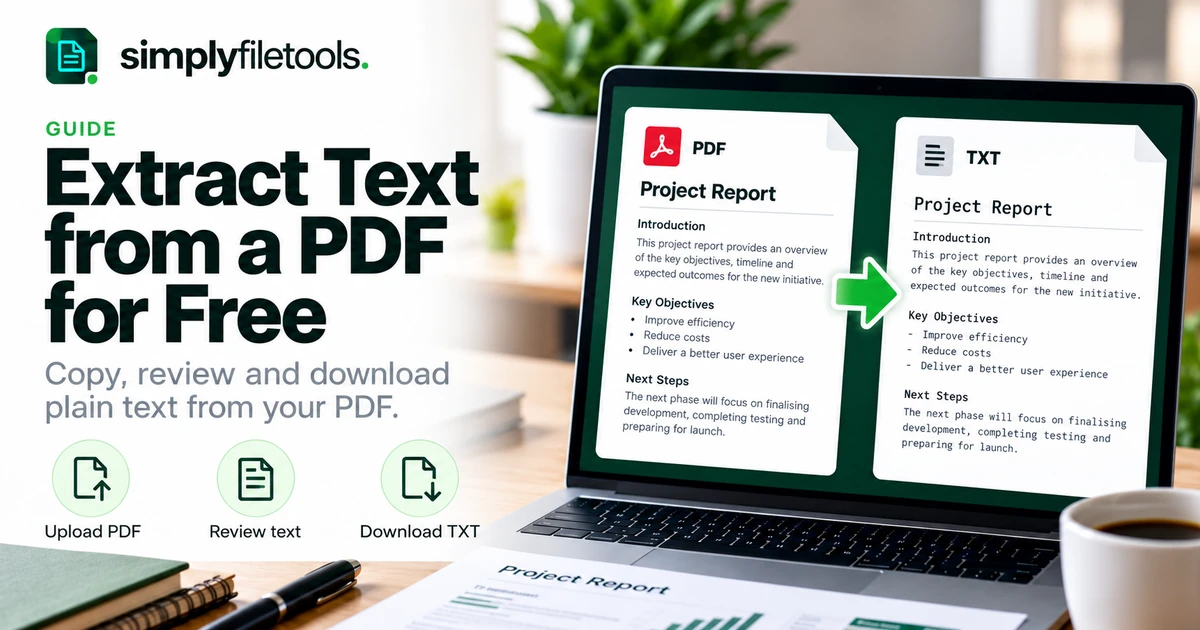
To extract text from a PDF for free, open a PDF-to-text tool, upload a supported file, review the extracted words and copy or download the result as TXT. If you only need a short passage from a searchable PDF, you can also select and copy it directly in your PDF reader.
The important step is checking what comes out. A successful conversion does not guarantee that every paragraph, number or table has been recovered correctly. This guide explains both approaches, how to identify a scanned PDF and what to do when text is missing, garbled or in the wrong order.
Choose the right method for your PDF
Start by opening the PDF and trying to select one ordinary sentence. This quick check helps you choose a method without processing the entire file unnecessarily.
| Your situation | Start with | What to check |
|---|---|---|
| You need one short passage and can select its words | Copy and paste from your PDF reader | Characters, line breaks and paragraph order |
| You want reusable text from a supported document | A PDF-to-text converter | Completeness across the whole file |
| The pages are scans with no usable text layer | OCR or text recognition | Recognition accuracy, language and scan quality |
| The PDF has a complicated table or several columns | Extraction followed by a careful layout check | Which words and values belong together |
| The file is restricted, damaged or will not open | An accessible copy from the owner or original source | Permission to use the file and whether it opens correctly |
Some documents mix searchable pages with scanned inserts. Check an affected page separately rather than assuming the entire PDF uses the same type of content.
How to extract PDF text with SimplyFileTools
The SimplyFileTools PDF to Text converter provides free text extraction, review, copying and TXT downloads for supported files. Optional professionally designed document downloads are a separate service; you do not need to purchase one to copy or save the extracted plain text.
- Open PDF to Text. Go to the tool page and read the current file requirements.
- Choose your PDF. Use the file chooser or drop the file into the upload area.
- Upload the file. Complete the security check if it appears and follow the on-screen processing steps.
- Review the document text. Compare it with the original PDF, including the beginning, middle and end.
- Correct any errors. Check names, dates, figures and sections where the layout is complicated.
- Keep the result. Use Copy text or Download TXT — free, depending on how you want to reuse the words.
Keep the original PDF. Your TXT file is a useful working version of the wording, but it does not replace the original page layout, illustrations or document record.
Current file requirements
At the time this guide was prepared, the tool displayed a PDF upload limit of 20 MiB. PDFs requiring recognition had a separate limit of 10 MB and up to 8 pages requiring recognition. Check the live tool page before uploading because limits and processing allowances can change.
Free extraction remains subject to file, security and usage limits. Some recognition may use an AI provider. Review the Privacy Policy and your organisation's requirements before uploading sensitive material. Do not assume that processing happens entirely inside your browser.
How to copy a short passage without converting the file
If the PDF contains selectable text and you only need a paragraph, direct copying is often the quickest option.
- Open the PDF in a reader or browser that supports text selection.
- Select a short passage, avoiding nearby columns, captions or headers.
- Copy it and paste it into a text editor or your destination document.
- Use the destination application's paste-without-formatting option if unwanted styling appears.
- Compare the pasted wording with the PDF before continuing.
For example, when copying a report's conclusion into your research notes, check that the selection ends before the footer. Add the source reference to your notes so you can return to the original passage later. Follow any applicable permission or attribution requirements when reusing the text.
Plain-text pasting removes carried-over styling. It will not repair incorrect letters or recover words that were not copied. If a selected paragraph becomes random symbols, use the troubleshooting section below.
What if the PDF is scanned?
A scanned PDF may contain pictures of pages rather than usable text. OCR, short for optical character recognition, attempts to recognise the words visible in those pictures. A scan can also contain an existing text layer, which may explain why selection works but the copied wording contains mistakes.
Try a representative page first. Use the clearest source available, keep it upright and inspect faint print, stamps and handwriting carefully. Do not judge recognition quality only by whether the first sentence looks correct.
For a full scan-specific workflow, see how to extract text from a scanned PDF. That guide covers the extra preparation and checking needed when the words must be recognised from page images.
What a TXT file preserves and what it loses
Plain text is helpful for searching, editing and moving wording between applications. It is not designed to reproduce a PDF's appearance.
| PDF content | What to expect in extracted text |
|---|---|
| Ordinary paragraphs | Words may be recovered, with different wrapping or spacing |
| Headings and lists | Wording may remain; styles, indentation and numbering need checking |
| Tables and columns | Values and labels can lose their visual relationships or reading order |
| Images, charts and diagrams | Plain text does not reproduce the visual content |
| Headers, footers and page numbers | They may appear among the body text and require cleanup |
| Comments, form fields and other embedded content | Do not assume these are included; inspect them in the original |
If the reader needs the original page design or a chart, share the PDF alongside your text or use a suitable document format. Do not describe a TXT export as a faithful copy of every part of the PDF.
A practical example: extracting an invoice
Suppose a fictional supplier invoice contains an invoice number, a date, two line items and a total. After extraction, the numbers are present, but the spacing no longer forms a clear table.
Before using that text in your records, match each amount to its label. A value that belonged in the unit-price column should not become the line total just because it appears beside a product name in the extracted text.
- Compare the supplier name, invoice number and issue date.
- Check each item description against its quantity, unit price and amount.
- Verify subtotal, tax and total separately.
- Keep the source PDF with the extracted text so the figures can be checked again.
A simple checklist makes the review more reliable than reading the export from top to bottom and assuming the amounts are in the right places. Apply the same principle to report statistics, reference numbers and document dates.
How to check your extracted text for missing content
Use a repeatable review rather than checking only the first page. For a long document, keep track of which pages or sections you have inspected.
- Coverage: compare the first and last paragraph of each relevant section.
- Order: check that paragraphs, columns and list items follow the intended sequence.
- Accuracy: verify names, dates, decimal points, symbols and reference numbers.
- Structure: inspect table rows, captions, footnotes and headings.
- Final file: save the TXT, reopen it and check that the characters still display correctly.
For important passages, compare the wording directly with the source. If you cannot resolve an unclear word, mark it as uncertain and obtain a better copy instead of guessing.
Common PDF-to-text problems and fixes
Nothing can be selected or extracted
The page may be a scan, or the visible lettering may not be stored as ordinary text. Check whether recognition is appropriate and whether the file meets the tool's current scan limits. If the reader reports copying restrictions, ask the owner for an authorised accessible copy.
The output contains strange characters
Test a short passage in another PDF reader. If that also fails, ask for a fresh PDF export or the original editable document. Recognition can be a fallback when the visible page is readable but its text data is unreliable. See why PDF text copies as gibberish for a more detailed diagnosis.
Columns or table rows are mixed together
Compare the export with the page layout and work through one column or table at a time. Rebuild the relationships between labels and values where necessary. Do not assume that changing the font or widening the editor will put the words back in order.
Every line ends with a break
Join lines within a paragraph carefully, leaving genuine paragraph boundaries and lists intact. Do not remove all line breaks or hyphens across the whole file: you could join separate items, damage a compound word or alter a negative value.
The upload is rejected or the PDF will not open
Check the file type and the current limits on the tool page. If the download was incomplete, obtain a fresh copy from the source. For password-protected or restricted material, request an accessible version you are allowed to process. Renaming the filename extension does not repair or convert a PDF.
The original Word document is available
Consider extracting from the DOCX instead of an exported PDF when your goal is reusable wording. Our guide to converting Word to plain text explains that workflow and its limitations.
Frequently asked questions
Can I extract text from a PDF for free?
Yes. SimplyFileTools provides free extraction, text review, copying and TXT downloads for supported files, subject to current file, security and usage limits. Optional formatted document downloads are separate.
Do I need Adobe Acrobat?
No. You can use an online PDF-to-text tool or copy selectable text using a compatible PDF reader or browser. Scanned pages require a workflow that supports recognition.
Can I extract text from every scanned PDF?
No method guarantees usable results from every scan. Quality, language, layout and supported file limits matter. Blurred or missing text may require a clearer source or manual transcription.
Will the TXT file keep the PDF's tables and images?
No. Plain text does not reproduce images or the original designed layout. Check tables against the PDF because labels and figures may lose their alignment.
Can I process a confidential PDF?
Use a method approved for that information and check the service's current privacy terms. Where uploading is inappropriate, use an approved local workflow instead.
Why does extracted text differ from what I see?
The PDF may contain an inaccurate recognition layer, unusual character mappings or a complicated layout. Compare a short section, identify whether the issue is letters or order, then choose the relevant fix above.
Extract the words, then verify the result
Choose direct copying for a short selectable passage, text extraction for reusable document wording and recognition for supported scans. Keep the original PDF and check completeness, reading order and important details before using the output.
Open SimplyFileTools PDF to Text to upload a supported PDF, review the result and copy or download TXT for free. For other source files, explore the free text extraction tools.
Ready to try it?
Upload your PDF, review the extracted text and copy or download it as TXT for free.
PDF to Text →