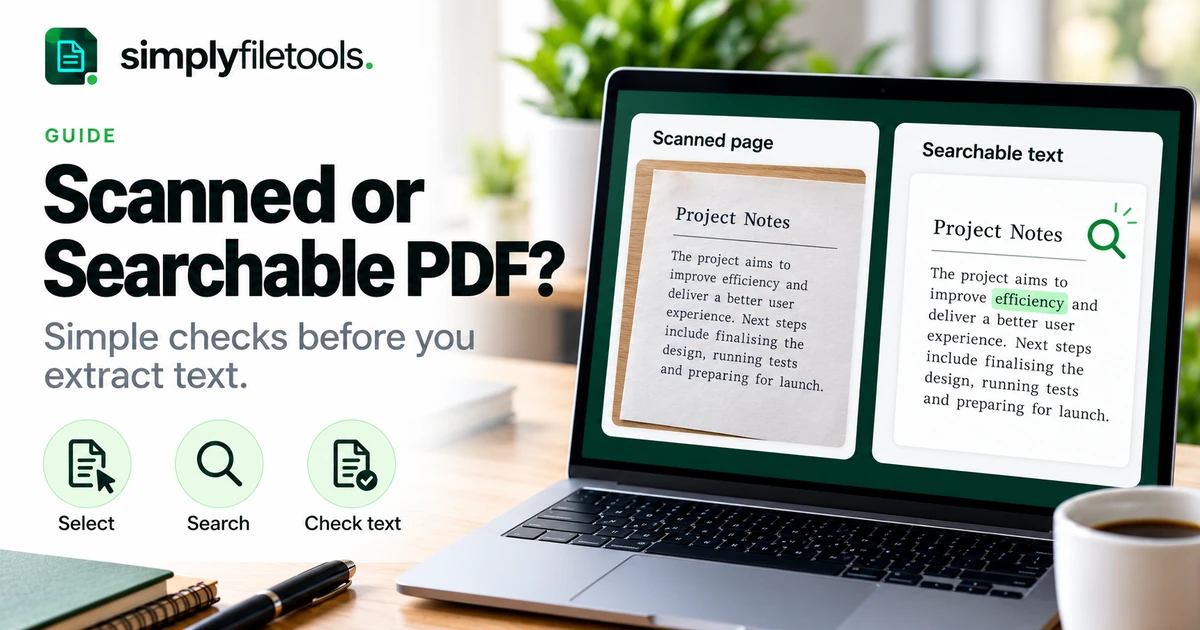
To tell whether a PDF contains searchable text, try selecting a word, searching for a visible term and copying a short passage into a text editor. Test more than one page. A scanned page can also be searchable if OCR has added a text layer, so “scanned” and “searchable” are not opposites.
These checks help you choose the right next step: ordinary text extraction, OCR or a closer review of an existing text layer. This guide explains the differences, a practical testing sequence and what to do when the results disagree.
Scanned, searchable and digitally created PDFs explained
A scanned PDF contains page images captured from paper or another visual source. Without recognised text, the words are visible to a person but are not necessarily available to a search or extraction function.
A searchable PDF contains machine-readable text that a viewer can use for text searches. That text may come directly from the application that created the document or from OCR, which stands for optical character recognition.
A digitally created PDF is often exported from a document application. It commonly contains text objects, but its origin alone does not guarantee reliable copying, searching or reading order.
| Page type | What you see | What to check |
|---|---|---|
| Image-only scan | A picture of printed or handwritten content | Whether any page text is actually selectable or searchable |
| Scan with OCR | The scan, with recognised text associated with it | Whether recognised words match the visible page |
| Digitally created text page | A designed page containing text and possibly images | Copy accuracy, coverage and reading order |
| Mixed PDF | Different content types across or within pages | Each relevant section rather than only the first page |
Adobe's text-recognition documentation explains how OCR can add searchable text to a scanned PDF. That additional text does not establish that every recognised character is correct.
Before testing: open the actual PDF
Use a PDF viewer rather than judging a thumbnail, screenshot or preview image. Let the document finish opening, and confirm that you have the intended file and version.
Keep the original unchanged. If a workflow offers to modify or recognise the file automatically, use a copy for that work. You want to distinguish what was present originally from what a viewer or later process added.
Choose a few representative pages: the first substantial text page, a later section and any scanned appendix or table. For a large document, record the areas tested so you do not accidentally generalise from one easy page.
Test 1: try selecting a single word
- Activate the viewer's text-selection tool if one is available.
- Choose an ordinary word in the body of a page.
- Drag across it and observe what highlights.
- Repeat with a different line and another page.
- Note whether selection follows words or simply selects a rectangular image area.
Word-level selection suggests that text is available to that viewer. It does not tell you whether the text came from an original digital document, an existing OCR layer or recognition performed by the viewing application.
If selection fails, check that you are not using a hand or drawing tool. Copy restrictions or viewer limitations can also affect the test. A single failed selection is a reason to investigate, not a complete diagnosis.
Test 2: search for a clearly visible word
Use the PDF viewer's own Find control. In desktop Acrobat, Ctrl+F on Windows or Command+F on macOS opens Find; Adobe's PDF search instructions describe the available options.
- Pick a distinctive word you can clearly read in the page body.
- Type it into Find rather than copying it from an uncertain text layer.
- Check that a result highlights the intended word on the page.
- Try another visible word in a different section.
- If nothing matches, review case-sensitive or whole-word settings and try a shorter ordinary term.
A match in a comment or bookmark is not the same as finding the printed page wording. Confirm the location of the result. Conversely, a failed long-phrase search may reflect spacing or line-break differences rather than a complete absence of text.
Test 3: copy a passage and compare it
Select a short body-text passage, copy it and paste it into a plain-text editor. Compare the pasted result with the visible PDF rather than only checking whether something appeared.
- Are the words and punctuation correct?
- Are numbers, minus signs and decimal points intact?
- Do accented names or other scripts match?
- Does the passage follow the intended reading order?
- Are lines missing, repeated or mixed with adjacent columns?
A page can pass the search test and still produce unusable copied text. Our guide to PDF copying that produces gibberish covers that situation in more detail.
How to interpret the three tests
| Result | Practical interpretation | Next step |
|---|---|---|
| Selection, search and copying work accurately | Useful text is available in the tested area | Extract what you need and review the full result |
| Words are visible but all tests fail | The area may be image-only, restricted or unsupported by the viewer | Check the viewer and permissions, then consider OCR |
| Search works but copying is wrong | The text is present but may be inaccurate or poorly mapped | Compare with the source and investigate extraction quality |
| Some pages pass and others fail | The file may contain mixed content or uneven recognition | Review and process the affected sections appropriately |
Treat these as workflow clues, not proof of how the file was originally produced. The useful question is whether the specific content you need is available accurately.
Worked example: a report with a scanned appendix
Imagine a fictional twelve-page report. Pages 1–8 were exported from a document editor, while pages 9–12 contain scanned supplier letters. You need a project description from page 3 and a reference number from page 10.
The description on page 3 selects, searches and copies correctly. On page 10, you can see the supplier's letter but cannot select its body text or find a distinctive visible word. Testing only page 3 would have hidden that difference.
Record the result by section:
Pages 1–8: tested sample contains usable text; review extracted wording.
Pages 9–12: scanned letters; inspect the required pages for OCR needs.
Priority check: compare the page 10 reference number with the visible original.
If OCR later reads the reference as “AB10O7” but the letter shows “AB1007”, correct it only after verifying the source. Searchability alone would not establish which characters were intended.
This example illustrates a mixed document, not a guarantee about every page in a similar report. Check the content relevant to your own task.
Choose between text extraction and a searchable PDF
If you need wording to copy or reuse
The SimplyFileTools PDF to Text tool provides extracted-text review, copying and TXT downloads for free, subject to its current requirements. Review the output against the source, especially for tables, scans and important values.
See how to extract PDF text for free for the general workflow, or the scanned PDF guide when the wording is contained in page images.
If you need the PDF itself to become searchable
Choose a workflow that explicitly outputs a PDF with a recognised text layer. Extracting a separate TXT file does not, by itself, modify the original PDF or add text to it.
Check the chosen application's output options, page coverage and current requirements. Keep the original, save the processed result separately and repeat the selection, search and copy checks on that exact file.
Common mistakes when checking PDF text
Assuming a sharp-looking page must contain digital text
A high-quality image can look crisp while remaining an image. Visual appearance is useful for checking readability, but it does not replace the practical tests.
Assuming one searchable page represents the whole file
Reports can combine exported pages, scans and inserted images. Sample the sections you need and investigate inconsistent results.
Trusting a recognised text layer without review
The layer can contain omissions or incorrect characters. Compare important content with the page image rather than relying on a successful search alone.
Treating reading-order problems as missing text
Columns and sidebars can create confusing output even when the wording exists. See extracting text from multi-column PDFs for a review workflow.
Overwriting the only original during processing
Keep a source copy and label the processed file clearly. This makes it easier to compare changes and return to the original if the new result is incomplete.
Frequently asked questions
Can a scanned PDF be searchable?
Yes. OCR can associate machine-readable text with scanned pages, allowing search while the page image remains visible.
Does selectable text mean the PDF was never scanned?
No. Selection may use OCR text or recognition provided by the viewer. It does not establish the original creation method.
Why can I search one page but not another?
The PDF may contain different content types, or recognition may be incomplete. Check the affected pages individually.
Will downloading TXT make my original PDF searchable?
No. A separate text download does not add a text layer to the source PDF.
Can searchable text still contain mistakes?
Yes. Compare names, numbers and other important wording with the visible source before using them elsewhere.
Is a searchable PDF automatically accessible?
No. Searchable text alone does not establish correct reading order, document structure or other accessibility requirements. Assess those separately for the intended audience.
Check the content before choosing a conversion
Use selection, search and copy tests together, and inspect the sections relevant to your task. Decide whether you need reusable wording or a searchable PDF output, then verify the result against the original.
For reusable wording, start with SimplyFileTools PDF to Text and review the extracted text before copying or downloading it.
Ready to try it?
Upload your PDF, review the extracted text and copy or download it as TXT for free.
PDF to Text →