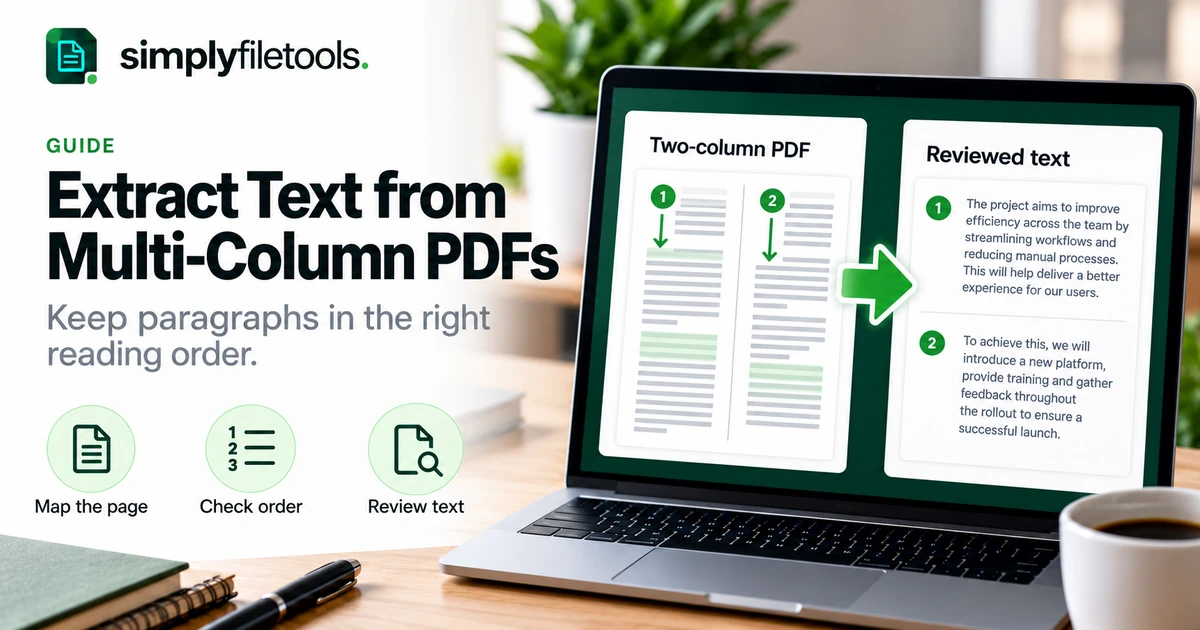
To extract text from a PDF with multiple columns, first identify the page's intended reading order, test a representative passage and compare the output with the original. If the columns become mixed, recover smaller sections separately and assemble the reviewed paragraphs in the correct sequence.
Copying an entire page can produce text that alternates between columns or inserts captions in the middle of sentences. This guide explains how to recognise those problems, choose a practical extraction route and check the result without assuming that clean-looking text is correctly ordered.
Why multi-column PDFs can produce mixed-up text
A PDF's internal text sequence may differ from its visual reading order. A page that looks like two ordinary columns can therefore produce a surprising sequence when copied or extracted. Position-based sorting may help some layouts but does not provide a universal solution, as the PyMuPDF text extraction FAQ explains.
The practical question is whether the output follows the content's meaning. Correct letters alone are insufficient if the sentence beside them belongs to another section.
| Source layout | Possible extraction problem | What to inspect |
|---|---|---|
| Two continuous columns | Lines alternate across the page | End of the first column and start of the second |
| Main article with sidebar | Sidebar text interrupts the body | Separate topic and heading boundaries |
| Full-width heading above columns | The heading appears in the wrong position | Where the section actually starts |
| Images with captions | Caption text merges into a paragraph | Which image or figure the words describe |
| Tables within an article | Values lose their labels or row order | Rows, columns and units |
Step 1: map the page before extracting
Open the PDF at a readable size and decide how a person should follow the content. Many left-to-right articles run down the first column and then down the next, but do not impose that pattern on every page. Language direction, layout and continuation labels matter.
- Identify the main title and any full-width introduction.
- Find the start and end of each column.
- Mark sidebars, captions, footnotes and tables as separate elements.
- Check whether the article continues on another page.
- Note the order you intend to reconstruct.
A brief working note such as “page 3: introduction, left column, right column, figure caption” can prevent confusion later. Keep the PDF as the reference while preparing a separate text copy.
Step 2: check whether the PDF contains usable text
Try selecting a short sentence in one column and copying it into an editor. If the words are present and accurate, direct extraction may be suitable. If nothing can be selected, the page may be a scan or otherwise lack usable text.
Some scans have an existing recognition layer, so selection alone does not establish accuracy. Compare the copied characters with the visible page.
For image-only pages, see how to extract text from a scanned PDF. Recognition still needs a reading-order review; it is not a guarantee that multiple columns will be reconstructed correctly.
Step 3: test a representative section
Choose a page with the layout that matters, not just a simple cover or contents page. Include a column transition or sidebar if those are causing difficulty.
Copy a short passage and check where the selection travels. Some readers offer region or rectangular selection, while others select across both columns. Use the controls actually available in your reader rather than assuming the same gesture works everywhere.
Inspect the result before attempting the whole document:
- Does the first sentence begin in the right place?
- Does each sentence continue into the correct next line?
- Does the first column finish before the next begins?
- Are headings, captions and sidebars distinguishable?
- Is any required content missing or duplicated?
If the small test is already mixed, a larger selection will usually create more cleanup work. Try a narrower passage or another extraction route.
Step 4: compare a PDF-to-text extraction
The SimplyFileTools PDF to Text tool provides free text review, copying and TXT downloads for supported files. Use it as an extraction route, then compare its output against the page layout.
- Open the tool and check its current file and recognition limits.
- Choose your PDF and follow the upload steps.
- Complete any security check shown.
- Review the extracted wording beside the original.
- Check the transitions between columns and sections.
- Keep the result only after correcting or clearly marking unresolved content.
Do not assume automatic column repair, layout preservation or structured table export. Optional professionally formatted downloads are separate from free extraction.
Our guide to extracting PDF text for free covers the general workflow. For confidential material, use a processing method approved for that information.
Step 5: recover columns or blocks separately
If the whole-page result is unreliable, work through manageable sections. Where your reader supports it, select one column or text region at a time. Otherwise, use smaller passages you can reliably compare with the source.
For a scan, a separate image crop can be a useful input to a supported recognition workflow. Keep complete words and relevant headings, and preserve the original page. Cropping a picture does not automatically create a correct text reading order.
Label working sections with their page and position, such as “page 4, main column 1”. These labels are temporary aids; remove them from the final output only when the content can still be traced to its source.
Avoid selecting the same boundary twice. Overlapping selections can duplicate a sentence, while a gap between selections can omit one.
Worked example: repairing a two-column extract
Imagine a fictional page whose left column contains:
The team completed the first review. The next stage is to test the revised form.
The right column continues:
Testing will begin on Monday. Results will be discussed at the project meeting.
A mixed extract might read: “The team completed the first review. Testing will begin on Monday. The next stage is to test the revised form. Results will be discussed at the project meeting.”
Each sentence is readable, but the sequence no longer follows the source. The reviewed text should place the complete left-column passage before the right-column continuation.
- Recover the left column and compare both sentences.
- Recover the right column and check its first and last words.
- Place the sections in the confirmed reading order.
- Check whether the transition is a new paragraph or a continuation.
- Compare the assembled version with the whole page.
This example uses simple sentences. Real articles may require closer attention to quotations, numbered references and continuation across pages.
Step 6: handle sidebars, captions and footnotes deliberately
A sidebar can be visually adjacent to the body without being part of its sentence sequence. Give it a separate heading or labelled section in your working text when its content is needed.
Keep a caption associated with the figure it describes. If the final TXT cannot include the figure, retain enough context to explain the reference or keep the PDF alongside it.
Check footnote markers and corresponding notes separately. Do not silently move a note into the middle of a body sentence or drop it when its qualification matters.
Tables need their own review. Compare values against row and column headings; do not treat a list of recognised numbers as a faithful representation of the grid.
Step 7: clean line breaks after fixing the sequence
Repair reading order before joining lines. Otherwise, you may combine fragments from different columns into sentences that never appeared in the PDF.
Once the sequence is established, join unwanted breaks inside paragraphs and preserve headings and real boundaries. Check line-ending hyphens individually rather than removing every hyphen.
See how to fix line breaks in copied PDF text for careful cleanup steps. Styling changes do not by themselves fix missing words or incorrect order.
Final review checklist
- Coverage: every required column and continuation page is represented.
- Sequence: sentences and sections follow the intended reading order.
- Boundaries: no missing or duplicated text between selections.
- Context: captions, notes and sidebars are identified appropriately.
- Details: names, numbers, symbols and references match the source.
- Output: save, reopen and inspect the final text in its destination.
Read the assembled output for meaning as well as comparing its individual words. A paragraph can be grammatically plausible while belonging in another part of the article.
Common problems and fixes
The reader selects both columns at once
Check whether it offers a region-selection mode. If not, try smaller passages, a different compatible reader or another extraction route, reviewing the result each time.
Text repeats at a page boundary
Compare the end of one working section with the start of the next. Remove only the confirmed overlap; repeated wording may also be intentional.
Letters become strange symbols
That is a different problem from reading order. See why copied PDF text becomes gibberish and obtain a fresh source export if available.
Recognition gives correct words in the wrong sequence
Use the visible layout to reconstruct separate regions. Better character recognition alone does not guarantee an appropriate paragraph sequence.
The article continues on a distant page
Follow the continuation reference and preserve the connection in your working notes. Do not assume every article ends at the bottom of its first page.
Frequently asked questions
Can a PDF-to-text tool always preserve columns?
No. Results depend on the source and extraction method. Verify the actual output against the page.
Should I read across both columns line by line?
Follow the document's intended flow. Many articles run down one column before the next, but layout and language can change the order.
Will OCR fix the reading order automatically?
Do not assume so. Recognition can still mix blocks, especially with sidebars, captions and tables.
Can I keep the original layout in TXT?
TXT does not reproduce the designed page. Keep the PDF when the visual structure or figures matter.
Is PDF text extraction free with SimplyFileTools?
Supported text extraction, review, copying and TXT downloads are free, subject to current limits.
What if I cannot establish the correct order?
Obtain the original editable document or a clearer reference where possible. Mark unresolved sections rather than inventing a sequence.
Preserve the reading order, then clean the text
Map the page, test a representative section and recover smaller regions when needed. Assemble the confirmed sequence before fixing line breaks, and review the result against the source.
Try SimplyFileTools PDF to Text for a supported PDF, or explore the free text extraction tools for other file types.
Ready to try it?
Upload your PDF, review the extracted text and copy or download it as TXT for free.
PDF to Text →