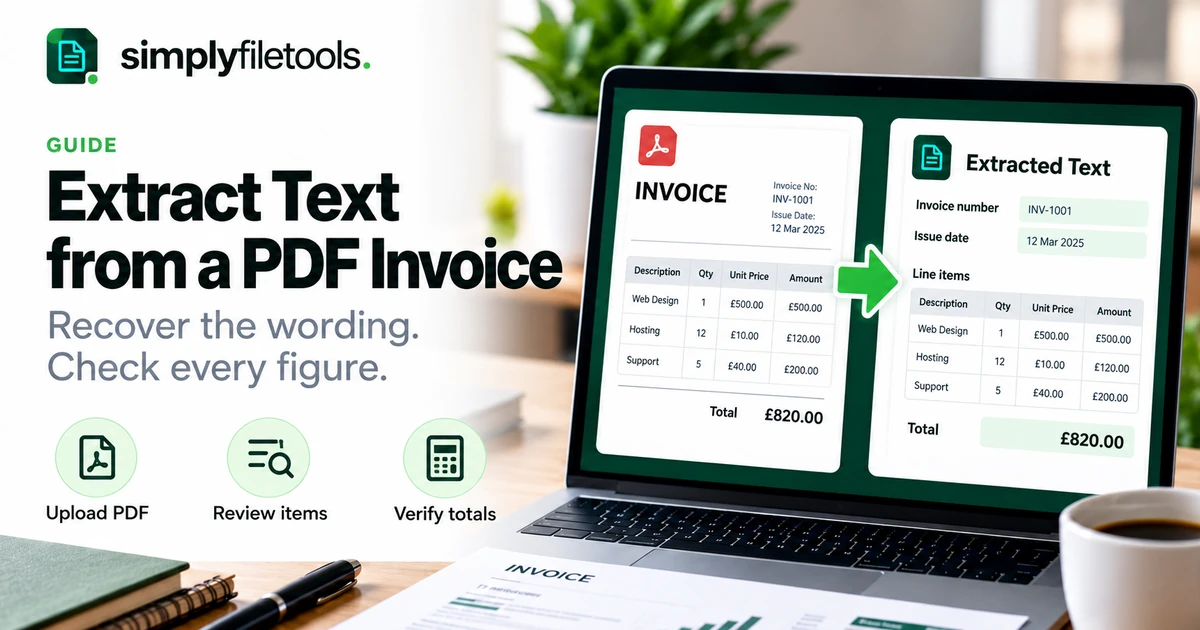
To extract text from a PDF invoice, upload a supported file to a PDF-to-text tool, review the extracted wording and copy or download it as TXT. Then compare the invoice number, dates, line items and totals with the original PDF before using the result in your records.
The checking step matters because an invoice is more than a collection of words. A number in the wrong row or an omitted minus sign can change the meaning. This guide explains a practical extraction workflow, how to handle scanned invoices and how to verify the output without assuming that plain text preserves the original table.
What can you extract from a PDF invoice?
A readable invoice may contain supplier and customer names, an invoice reference, issue and payment dates, descriptions, quantities, prices and totals. Whether these appear correctly in the output depends on how the PDF stores its content and how the extraction handles its layout.
Text extraction produces wording that you can review and reuse. It is not necessarily structured invoice data, an accounting import or a validated financial record. Keep the original invoice as the reference.
| Invoice information | What to check after extraction |
|---|---|
| Supplier and customer | Correct names and the relationship between the parties |
| Invoice reference | Every letter, digit, hyphen and leading zero |
| Dates | The label and date format, including issue versus due date |
| Line items | Description, quantity, unit price and amount remain associated |
| Adjustments | Discounts, credits and negative values retain their meaning |
| Totals | Currency, subtotal, tax labels and final amount match the source |
Do not assume a missing field means the invoice never contained it. Check the source page, especially footnotes, side panels and sections continued on another page.
Step 1: identify a searchable or scanned invoice
Open the PDF and try selecting the invoice reference or a short description. If you can select individual words, the file likely contains usable text. If the page behaves like a single picture, it may require OCR, or optical character recognition.
Some scanned invoices already have a hidden recognition layer. They may allow copying while still producing incorrect letters or digits. Test the result rather than relying on selection alone.
For a general overview, see how to extract text from a PDF for free. If the invoice is a scan, our scanned PDF guide covers preparation and recognition in more detail.
Step 2: prepare the source file
Use the original PDF supplied by the sender where possible. A screenshot or forwarded image can lose detail and may omit pages or payment notes.
- Confirm that the PDF opens and all pages are present.
- Check that the invoice you need is complete, including any continuation pages.
- For scans, inspect whether the print is sharp and the page is upright.
- Keep an unchanged copy of the source.
- Read the extraction tool's current file and recognition requirements.
If you need to divide a large file into supported sections, retain a clear connection between those sections and the original invoice. Do not accidentally treat continuation pages as separate invoices.
Use an approved workflow for confidential documents. Invoices can contain personal, commercial or payment information. Check the Privacy Policy before uploading to SimplyFileTools and consider your organisation's requirements.
Step 3: extract invoice text with SimplyFileTools
The SimplyFileTools PDF to Text tool provides free text review, copying and TXT downloads for supported files. Check the current upload limits on the tool page, including any separate limits for PDFs requiring recognition.
- Open PDF to Text.
- Choose the invoice PDF from your device.
- Upload it and complete the security check if prompted.
- Follow the on-screen processing steps.
- Review the extracted text against the original invoice.
- Correct errors before using Copy text or the free TXT download option.
Recognition may use an AI provider, and the service is subject to file, security and usage limits. Optional professionally formatted document downloads are separate from free text extraction.
The result should be treated as a working text copy. This workflow does not claim automatic bookkeeping, spreadsheet export, invoice approval or verification of the supplier's details.
Step 4: verify the invoice identity
Before inspecting individual amounts, make sure the output belongs to the right invoice. Compare the supplier, customer, invoice reference and issue date. If you are processing several files, review one at a time or use a clear naming system.
References such as INV-00108 need character-level checking. A leading zero can disappear during later handling in another application, and OCR can confuse letters and digits. Preserve the reference as it appears on the source.
Distinguish the issue date from the due date. If a date such as 04/05/2026 is ambiguous, confirm its meaning from the source context or sender rather than silently choosing an interpretation.
Step 5: check line items row by row
Plain text does not preserve a designed table reliably. The extractor may place all descriptions together, then list quantities or prices elsewhere. Even when spacing looks like columns, verify the relationships.
- Find the first item in the PDF.
- Match its description to the extracted wording.
- Compare the quantity and unit of measure.
- Match the unit price and line amount using their source labels.
- Repeat for each item, including lines continued on another page.
Watch for wrapped descriptions. A second description line may belong to the item above rather than representing another charge. Likewise, a page footer or subtotal should not become an item description.
For a short invoice, a manual comparison may be quicker than trying to realign every space. If your next system needs columns, enter or arrange the reviewed fields explicitly rather than assuming TXT is a ready-made structured import.
Worked example: checking a fictional invoice
Suppose an invoice shows these two items. The values are fictional and illustrate checking the relationship between fields, not any tax treatment.
| Description | Quantity | Unit price | Line amount |
|---|---|---|---|
| Notebook packs | 3 | GBP 8.00 | GBP 24.00 |
| Storage folders | 2 | GBP 6.50 | GBP 13.00 |
The combined line amounts are GBP 37.00. Imagine that the extracted text lists the descriptions first and then the numbers 3 2 8.00 6.50 24.00 13.00. All numbers are present, but their relationships are no longer obvious.
Reconstruct each row using the original table: three notebook packs at GBP 8.00 each, and two storage folders at GBP 6.50 each. Then check the line amounts. Do not assume the first two numbers beside a description are its price and total.
If the actual invoice contains tax, delivery charges or a discount, verify those separately against their labels before comparing the final total. A correct sum of the items alone does not establish the amount due.
Step 6: verify totals, signs and currency
Compare the subtotal, adjustments, tax amounts and final total with the original. Check decimal points, thousands separators and currency labels. Formats vary, so do not assume that every comma is a thousands separator or every dot is a decimal point.
Look carefully at discounts, credits and negative amounts. A missing minus sign or a value detached from the word “discount” can reverse its meaning. Do not assume that an invoice marked paid still requires payment.
Extracted payment information is not independent confirmation that an invoice is genuine or that bank details are correct. Use your normal approval and supplier-verification process. If information appears changed or inconsistent, resolve it through that process before acting.
Step 7: save the reviewed text with its source
Use a filename that helps identify the source, such as example-supplier-INV-00108-reviewed.txt. Follow your team's naming convention and avoid including unnecessary sensitive information in filenames.
Keep the original PDF and reviewed output associated so another person can compare them. Mark any unresolved text clearly instead of presenting it as confirmed. Save and reopen the TXT file to check that symbols and characters still display as intended.
Text extraction can support data entry, review and reuse, but the output should not silently replace the original invoice in your records.
Common PDF invoice extraction problems
Some pages return no text
Check whether those pages are scanned or contain images of text. A document can mix digital and scanned content. Use supported recognition where appropriate and review the affected pages separately.
Amounts appear in the wrong order
Compare one row at a time with the original table. Do not infer the structure from spaces alone. Keep each amount associated with its label and item.
Letters turn into symbols
Test a short passage in another reader or request a fresh export from the sender. For more diagnosis, read why PDF text copies as gibberish.
The invoice reference is incomplete
Inspect the source at a readable size. Check prefixes, leading zeros, slashes and hyphens. If the source itself is unclear, request a better copy rather than guessing.
The file is password-protected or will not open
Ask the sender for an accessible copy through the appropriate process. If a transfer was incomplete, download it again. Changing the extension does not repair a damaged or encrypted file.
The image is too blurred for accurate recognition
Request the original digital invoice or a clearer scan. Enlarging a blurred image does not restore missing character detail.
Frequently asked questions
Can I extract text from an invoice PDF for free?
Yes. SimplyFileTools offers free extraction, review, copying and TXT downloads for supported PDFs, subject to current file and usage limits.
Will I get a spreadsheet with separate invoice fields?
This guide describes plain-text extraction. Do not assume that TXT output provides structured rows, validated fields or a spreadsheet export.
Can scanned invoices be read?
Supported scans may be processed with recognition. Quality affects the result, and every important field still needs checking.
Should I verify every number?
Compare all figures you intend to use, along with their labels, signs and currency. A plausible-looking amount can still be incorrect or assigned to the wrong row.
Does extraction prove an invoice is genuine?
No. It recovers wording from a file. Authenticity, payment approval and supplier details require your normal verification process.
What if the PDF contains several invoices?
Identify each invoice and its pages before transferring information. Keep references separate and check that totals and continuation pages are associated with the correct document.
Recover the text and preserve the meaning
Start with the clearest source, extract the wording and verify identity, rows and totals against the original. Keep unresolved details visible and retain the PDF as your reference.
Use SimplyFileTools PDF to Text to review, copy or download text from a supported invoice for free. For other source files, explore the free text extraction tools.
Ready to try it?
Upload your PDF, review the extracted text and copy or download it as TXT for free.
PDF to Text →