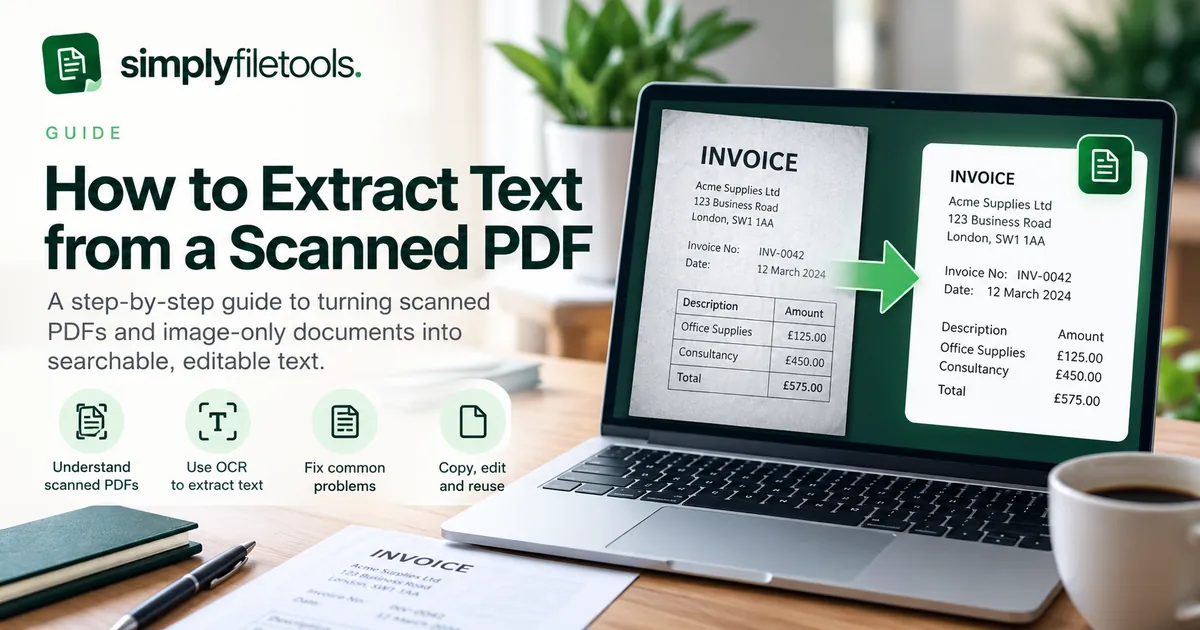
A scanned PDF can look like a normal document while behaving like a photograph: you can read the words on screen, but selecting, copying or searching them does not work. The solution is optical character recognition (OCR), which identifies letters and numbers in the page image and turns them into text you can review and reuse.
First, check whether your PDF is scanned
Open the PDF in your browser or a PDF reader. Try dragging your pointer across one sentence, then copying it into a text editor. If individual words can be selected and pasted correctly, the PDF probably already contains a text layer. If you can only select the whole page as an image, it may be an image-only scan. Some PDFs contain a mixture of selectable text and scanned pages, so test more than one page.
Also try searching for a distinctive word with your PDF viewer's Find command. A failed search is a clue, not proof: poor encoding, unusual fonts or an existing but inaccurate OCR layer can also cause problems.
How to extract text from a scanned PDF, step by step
- Choose the original PDF. Use the highest-quality copy you have. Avoid screenshots of screenshots or repeatedly compressed scans.
- Open a tool that supports OCR. Visit SimplyFileTools PDF to Text and check the displayed file-size and format limits before uploading.
- Upload the file. Select your PDF and start the extraction using the controls shown on the page. Scanned pages may require additional recognition processing.
- Review the extracted text. Compare names, dates, totals, decimal points, reference numbers and unusual characters against the original page.
- Correct any mistakes. Pay particular attention to tables and multi-column layouts: plain text may not preserve the original reading order or column alignment.
- Copy or download. Save the corrected result as plain text, or use an optional document-design workflow if you need a formatted output.
Important: OCR creates a text interpretation of a scanned page; it does not guarantee an exact reconstruction of the original document's formatting.
How OCR works
OCR software analyses the image of each page, identifies shapes that resemble characters, and attempts to reconstruct words and reading order. Clear printed text usually gives better results than blurred photographs, faint carbon copies or handwriting. Complex layouts require extra care because the software must also decide which block of text comes first.
A searchable PDF usually keeps the original page image and adds an invisible text layer for searching and selection. A plain-text extraction gives you the recognised words separately. These are different outputs: downloading TXT does not itself make the original PDF searchable.
Improve OCR accuracy before uploading
- Use a clear scan. A sharp, well-lit scan around 300 dpi is a practical starting point for printed text; very small type may need higher resolution.
- Straighten and crop. Remove large borders and correct skewed pages without cutting off page numbers or footnotes.
- Improve contrast. Make dark characters distinguishable from the background, but avoid filters that erase thin letters.
- Use the original file. Avoid downscaling, messaging-app compression and repeated JPEG saves.
- Check page orientation. Rotate sideways pages so text reads normally.
- Review language and symbols. Accents, mathematical notation and mixed languages can be misread.
What happens to tables, invoices and multi-column documents?
Tables are one of the hardest parts of text extraction. For example, an invoice may contain a description, quantity, unit price and total in separate columns. OCR can recognise each number correctly while placing it in the wrong position in plain text. A two-column newsletter can similarly produce text in an unexpected order.
When extracting financial or business documents, compare every line item with the original. Check that quantities correspond to the correct descriptions and that subtotals, tax and grand totals match. Never rely on an OCR result alone to make a payment or accounting decision.
Common scanned-PDF problems and fixes
The output is empty
Confirm the PDF contains visible page images and is not corrupted, encrypted or outside the tool's supported limits. Try opening the PDF in a normal reader first. If it is password-protected, use a permitted unlocked copy rather than attempting to bypass restrictions.
Letters and numbers are wrong
Look for confusion between 0 and O, 1 and l, or decimal points and commas. Rescanning at better resolution and improving contrast often helps. Always verify critical figures manually.
Words appear in the wrong order
Multi-column pages, footnotes, text boxes and tables can confuse reading-order detection. Compare the result page by page and move sections into the correct sequence in a text editor.
Handwriting is not recognised reliably
Handwriting recognition is more variable than recognition of clear printed text. Names, signatures and handwritten numbers may require manual transcription.
The PDF already lets me select text
You may not need OCR at all. Copy the existing text or use a normal text-extraction tool first; applying OCR unnecessarily can introduce recognition errors.
Can you extract text from a scanned PDF for free?
Yes. SimplyFileTools offers a free text-extraction workflow for supported files, with copying and TXT download. Availability, file limits and recognition options are shown in the tool. Optional professionally formatted PDF and editable Word outputs are separate paid features; you do not need to buy a document design simply to copy extracted text.
Try the free PDF-to-text tool or explore all free document tools.
Privacy and accuracy considerations
Scans can contain names, addresses, financial information and other personal data. Upload only documents you are authorised to process. Review the SimplyFileTools Privacy Policy for how files and recognition processing are handled, including circumstances in which third-party AI services may be used. Avoid uploading unnecessary sensitive information.
Keep your original PDF until you have verified the extracted result. For contracts, medical records, invoices and other important documents, use the original as the authoritative source.
Frequently asked questions
Why can't I highlight text in a scanned PDF?
The page may be stored as an image without a selectable text layer. OCR can recognise the words and produce editable text.
Does OCR preserve the original PDF layout?
Not necessarily. Plain-text output generally loses fonts, page positioning and table columns. A searchable PDF with a text layer is a different type of output.
Will OCR work on a blurry scan?
It may recover some words, but blurred or low-contrast text is less reliable. A cleaner original scan usually improves accuracy.
Can I extract text from a multi-page PDF?
Yes, provided the file falls within the tool's current page and size limits. Check the extracted content across all pages, especially where layouts change.
Can I turn the extracted text into a Word document?
You can paste plain text into Word and format it manually. SimplyFileTools also offers optional document designs with editable Word output, which is separate from the free TXT extraction.
Next steps
Start with the best scan available, run OCR, and review the result carefully before using it. For another common issue, read our upcoming guide on why text cannot be copied from some PDFs. If you already have an image or screenshot rather than a PDF, try Image to Text.
Ready to try it?
Upload your PDF, review the extracted text and copy or download it as TXT for free.
PDF to Text →