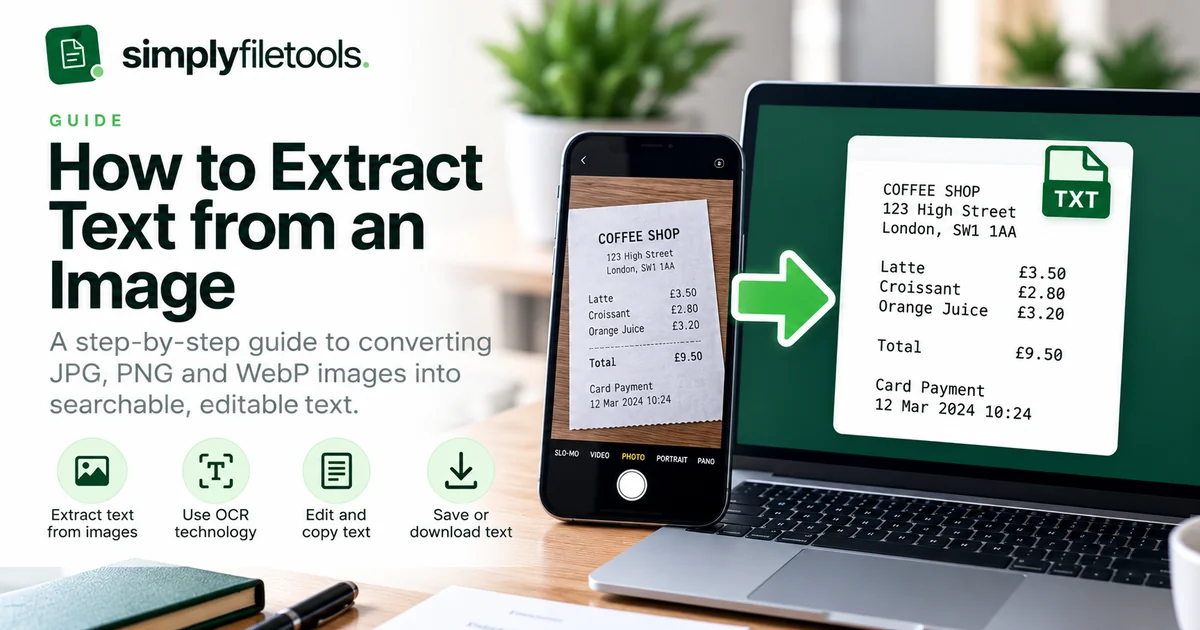
Text in a photograph, screenshot or scanned image may be easy to read but impossible to select. Image-to-text OCR converts visible characters into editable text that you can copy, search or save as a TXT file.
This practical guide explains how to extract text from JPG, PNG and WebP images, improve recognition accuracy, and avoid common mistakes with receipts, tables and screenshots.
What is image-to-text OCR?
Optical character recognition (OCR) is technology that identifies printed or handwritten characters in a picture and converts them into text. A photo or screenshot contains pixels rather than selectable words; OCR attempts to recognise those words so you can search, copy and edit them.
OCR is useful for receipts, photographed letters, screenshots, forms, labels and pages scanned as images. Recognition is not guaranteed to be perfect: unusual fonts, poor lighting and complex layouts can cause mistakes.
How to extract text from an image using SimplyFileTools
- Open the free Image to Text tool.
- Select a supported JPG, PNG or WebP image from your device.
- Follow any on-screen security or verification steps before processing.
- Start extraction and wait for the result. More difficult images may take longer.
- Compare the extracted text with the image, especially numbers, names and dates.
- Use Copy text or Download TXT to save your result.
Check the current upload limits and supported formats shown by the tool. Extraction and TXT download are free; optional professional document formatting is separate.
Which image formats work best?
JPG, PNG and WebP can all contain readable text, but image quality matters more than the file extension.
| Format | Good for | Things to watch |
|---|---|---|
| PNG | Screenshots, sharp text and diagrams | Can produce larger files |
| JPG / JPEG | Phone photographs and scanned pages | Heavy compression can blur letters |
| WebP | Web images and compressed screenshots | Small or heavily compressed text may be unclear |
If you can choose, use the clearest original image available rather than repeatedly saving or forwarding a compressed copy.
Extracting text from screenshots, receipts and photographs
Screenshots
Capture the text at a readable size. Avoid shrinking a screenshot before uploading it. Crop away unrelated windows, but keep the complete lines you need.
Receipts and invoices
Place the receipt flat, avoid shadows and ensure the whole page is in focus. Check totals, tax amounts, decimal points and dates against the original. OCR text is not a substitute for the original receipt when proof of purchase is required.
Photographs of documents
Photograph the page straight on, with even lighting and no glare. If the page curves near the spine of a book, flatten it gently or take separate photos of each page.
Seven ways to improve OCR accuracy
- Use the original file. Avoid screenshots of screenshots or compressed copies.
- Increase readability. Make sure letters are large enough to distinguish.
- Improve contrast. Dark text on a light, evenly lit background is easiest to read.
- Keep the page straight. Rotate tilted images before extraction.
- Remove distractions. Crop irrelevant backgrounds while preserving full words.
- Prevent blur. Hold the camera steady and check focus.
- Proofread the output. Verify important names, codes, amounts and symbols.
Higher resolution helps only when the source contains real detail; enlarging a blurry image cannot reliably recover missing characters.
What happens to tables, handwriting and layout?
OCR aims to recover characters, not recreate the original page design. A table may turn into lines of text, with cells appearing in an unexpected order. Multi-column layouts, text over pictures and rotated labels can also confuse reading order.
Handwriting is generally harder to recognise than clear printed text, especially cursive or faint pencil marks. Check the result manually. If preserving rows, columns, signatures or document appearance matters, retain the original image alongside the extracted text.
Common image-to-text problems and fixes
The tool cannot read my image
Confirm that the file is a supported image format and within the website’s current limits. Try a clearer export or a new photograph if the file is corrupted.
Letters or numbers are wrong
OCR may confuse O with 0, I with 1, or similar-looking symbols. Improve contrast and focus, then verify every critical value.
Words are missing
Check whether text is too small, obscured, cut off or embedded in a busy background. Crop more carefully and retry only when appropriate.
The text is in the wrong order
Columns and tables may be read across or down in an unexpected sequence. Compare against the original and rearrange the text manually when necessary.
Is it safe to upload an image for OCR?
Before uploading, check whether the image contains personal information, bank details, medical records or confidential business material. Use only a service whose privacy terms and processing arrangements suit the sensitivity of the document.
Review the SimplyFileTools Privacy Policy for information about handling uploads and extracted text. Avoid sharing sensitive content unnecessarily, and keep the original securely if you need it for records.
Frequently asked questions
Can I extract text from a JPG for free?
Yes. SimplyFileTools offers free extraction, copying and TXT downloads for supported JPG images, subject to current limits.
Can I copy text from a screenshot?
Yes. Upload a readable PNG, JPG or WebP screenshot and review the OCR result before copying it.
Does OCR work on handwriting?
Sometimes, but results vary considerably with writing style, clarity and language. Manual correction is often needed.
Will the extracted text keep the same formatting?
No. Plain text does not preserve the original fonts, page design, pictures or complex table structure.
Can I extract text from a scanned PDF?
Yes, but use a PDF-aware workflow. See our scanned PDF OCR guide and PDF to Text tool.
Turn your image into editable text
For a quick workflow, open SimplyFileTools Image to Text, upload a clear image, review the recognised words and copy or download the TXT result. If your source is a Word document instead, see how to convert DOCX to plain text.