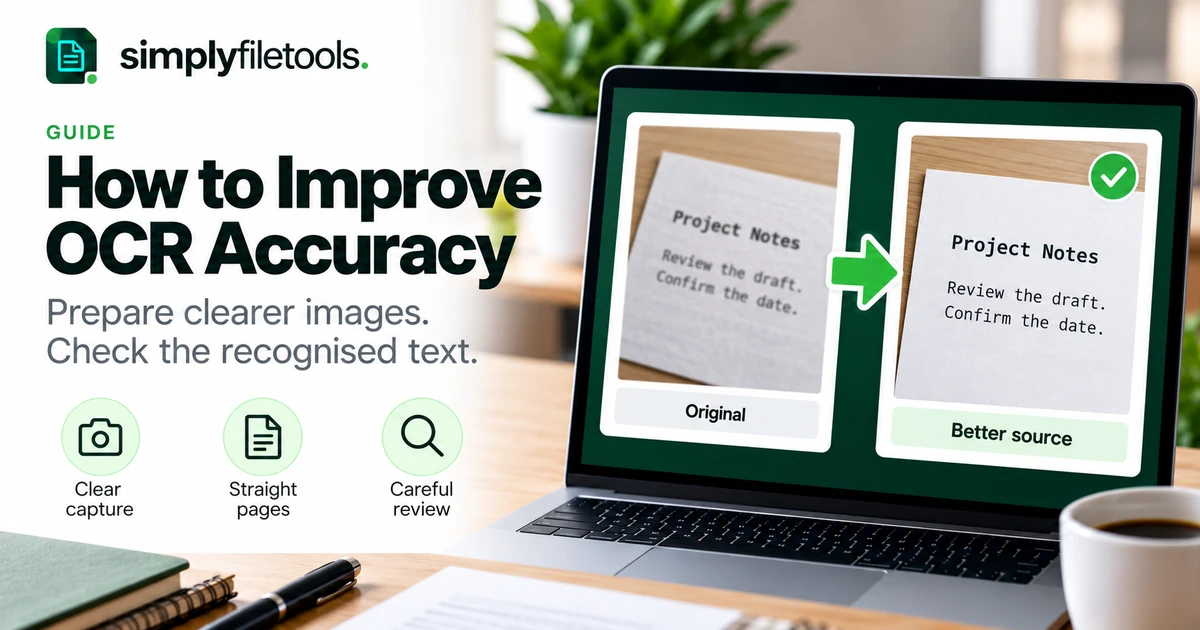
To improve OCR accuracy, start with the clearest source you can obtain, make sure the text is upright and readable, remove distractions without clipping words and check the recognised output against the original. A better image often helps more than repeatedly processing the same poor copy.
OCR, or optical character recognition, attempts to turn visible lettering into usable text. It can misread characters, omit words or confuse the order of sections. This guide gives you a practical preparation and review workflow for screenshots, photographed documents and scans, without promising perfect results.
Identify the problem before changing the image
Look at one representative section beside its recognised text. Decide whether the problem affects the letters, completeness or reading order. Those symptoms call for different checks.
| Symptom | What to investigate | Useful first step |
|---|---|---|
| Letters look unclear in the source | Blur, small text or lost detail | Obtain a clearer capture |
| Some words disappear | Clipping, glare, faint print or hidden text | Inspect the affected area in the original |
| Correct words appear in the wrong order | Columns, tables and mixed layout | Review smaller sections separately |
| Codes and numbers are wrong | Similar-looking characters and punctuation | Compare character by character |
| The tool rejects the image | Unsupported format or current upload limits | Check the tool requirements |
Do not assume that every problem is a recognition failure. If you copied the wrong page or the source omits a sentence, a different OCR pass cannot supply reliable missing content.
Step 1: use the best available source
Ask whether you can obtain the original file instead of an image. A digital document with usable text may allow direct extraction, avoiding the need to recognise letters from pixels.
For an image-only source, start with the original photograph, scan or screenshot rather than a version repeatedly forwarded and resized. Keep that source unchanged and create working copies for any adjustments.
If someone sent a small preview, ask for the full image. If you still have the webpage or document open, capture it again at a readable size. Enlarging the original content before capture is different from stretching an already blurred image afterwards.
Step 2: make the words readable at capture time
Open the image and inspect small letters, punctuation and the edges of words. If you cannot confidently distinguish them, the source may need replacing rather than more processing.
For screenshots
Close overlays, increase the source text's display size where possible and capture complete lines. For a long page, several readable sections may be more useful than one image with tiny lettering. Keep the sections in order.
Our guide to copying text from a screenshot explains capture boundaries, context and checking recognised links.
For photographs
Place the document flat where possible and hold the camera steady. Keep the page in focus and avoid fingers, shadows or reflections covering text. Take another photograph if the important wording is unclear.
Inspect the whole page rather than the centre alone. A readable title does not mean the smaller text near the bottom has been captured clearly.
For scans
Check that the scan includes every edge of the required content. Use a scan setting that makes the smallest important print readable, while respecting the destination's file limits. Judge the actual detail, not just the resolution number stored in the file.
Step 3: straighten and crop carefully
On a working copy, rotate the page upright and correct an obvious tilt if your image editor supports it. Crop irrelevant surroundings, but leave a little space around the text and retain labels needed to understand the content.
Dark scanner borders and excessive empty background can distract some OCR systems. Avoid the opposite mistake of cropping tightly through the edges of letters. The Tesseract image-quality guidance discusses skew, borders and preprocessing for that engine. Different recognition services may respond differently, so compare a small test rather than assuming one setting suits every tool.
For example, a cropped receipt total should still include the word “Total” and the currency where shown. A correctly recognised number without its label can be misleading.
Step 4: improve visibility without damaging letters
If the page has uneven lighting or weak contrast, first consider a better capture. Adjustments to an existing image should preserve the shapes and small marks that distinguish characters.
Try one modest change at a time on a copy, then inspect the same passage. Aggressive cleaning can remove decimal points or make neighbouring letters join together. A cleaner-looking page is not necessarily a more accurate recognition source.
Do not apply a stack of filters and discard the original. Keep enough information to compare the result and return to the best source if an adjustment makes recognition worse.
Step 5: simplify complicated layouts when necessary
When letters are right but reading order is wrong, try handling one column, paragraph or table region at a time. Keep headings and nearby explanatory labels with the content they describe.
For a page with a sidebar, recognise the main body and sidebar separately if the combined result interleaves their sentences. For a table, compare each row with its column headings before transferring values elsewhere.
This is a review workflow, not a guarantee that an OCR tool will reconstruct a structured table. Plain text does not preserve every relationship communicated by a visual grid.
Step 6: use the appropriate tool and settings
Use the recognition workflow that suits the source. Where your chosen software offers language or layout settings, select those appropriate to the material. Do not assume every online tool exposes these controls.
The SimplyFileTools Image to Text tool supports JPG, PNG and WebP images and provides free text review, copying and TXT downloads for supported files. Follow the live page's requirements for format, size and image dimensions.
- Open Image to Text and check the current requirements.
- Upload a clear working copy of the image.
- Complete any security check shown.
- Review the recognised wording against the source.
- Correct errors and keep unresolved passages clearly marked.
- Copy the reviewed text or download TXT for free.
Some recognition may use an AI provider. Check the Privacy Policy before uploading sensitive content and use an approved method for the information involved. Optional professionally formatted document downloads are separate from free text extraction.
For a full image workflow, see how to extract text from an image. For page images inside a PDF, use the scanned PDF guide and check its tool's separate recognition limits.
Step 7: compare a test passage before processing more
Choose a section that represents the difficult content, rather than testing only the clearest title. Include small text, punctuation or a reference code if those are important to the task.
Compare the original image and one prepared version using the same passage. Record which wording is missed or incorrect. Keep the version that helps the actual task instead of choosing whichever image looks most polished.
For a larger collection, this small test can prevent wasted work. If the prepared version still fails on important text, request a better source or plan manual transcription of the affected sections.
Worked example: improving a photographed note
Imagine a fictional note says:
Send draft B to Alex by 18 November. Do not distribute before review.
The photograph is tilted and a shadow crosses the second sentence. The first result reads “Send draft 8” and omits “not”. Those errors change both the reference and the instruction.
- Keep the original photograph as the comparison source.
- Retake the note with the page flat and the shadow removed.
- Check that the letters and second sentence are clearly visible.
- Recognise the new image and compare both results with the note.
- Verify B versus 8, the recipient, date and complete negative instruction.
Do not simply replace every 8 with B or assume the missing word. Use the source to establish the wording. If the source remains ambiguous, ask the author rather than presenting a guess as confirmed text.
Review checklist for recognised text
- Coverage: check the beginning, end and boundaries of every required section.
- Meaning: inspect words such as “not”, “before” and “after”.
- Names and codes: compare letters, digits and leading zeros.
- Numbers: check decimal points, signs, units and currency labels.
- Order: verify columns, list items and table rows.
- Final output: save, reopen and check the text in its destination.
Review all details you intend to rely on. A high-quality source or plausible-looking output does not remove the need to check important passages.
Common OCR problems and fixes
It keeps making the same mistake
Investigate the affected characters in the source. Try a clearer capture or a smaller relevant region rather than repeatedly submitting an unchanged image.
Handwriting is inaccurate
Check whether the writing itself is readable and whether the chosen tool handles it adequately. Manually transcribe uncertain sections and confirm ambiguous names or numbers with the author.
Only part of the document appears
Inspect crop boundaries, missing pages, faint areas and tool limits. Check that the input includes the complete content before changing recognition settings.
The words are right but the table is wrong
Rebuild the relationships between values and headings using the original. Do not treat a sequence of recognised numbers as a validated structured record.
Image conversion did not help
Changing the file format does not restore missing detail. Start from the clearest original and avoid unnecessary resizing or recompression.
Frequently asked questions
Can OCR be completely accurate?
Some passages may be recognised correctly, but you should not assume perfect accuracy across an entire document. Inspect the output against its source.
Does a larger file always give better results?
No. Extra file size does not guarantee readable letters. Focus on useful detail, visibility and a supported format.
Should I convert every image to black and white?
No universal adjustment suits every source and tool. Test a copy and check whether small marks and letters remain distinct.
Can sharpening recover unreadable text?
Do not rely on it to reconstruct detail absent from the source. A fresh capture or clearer original is preferable when the wording cannot be distinguished.
Can I extract text for free with SimplyFileTools?
Yes. Supported image text extraction, review, copying and TXT downloads are free, subject to current limits.
When should I stop trying OCR?
When the source remains unclear or repeated tests do not produce reliable wording, obtain another copy or use careful manual transcription with uncertain sections marked.
Improve the source and verify the result
Identify the actual problem, prepare a readable working copy and test a representative section. Review completeness and meaning as well as individual letters, and keep the original for comparison.
Try SimplyFileTools Image to Text with a supported image, or explore the free text extraction tools when you have a PDF or DOCX source instead.