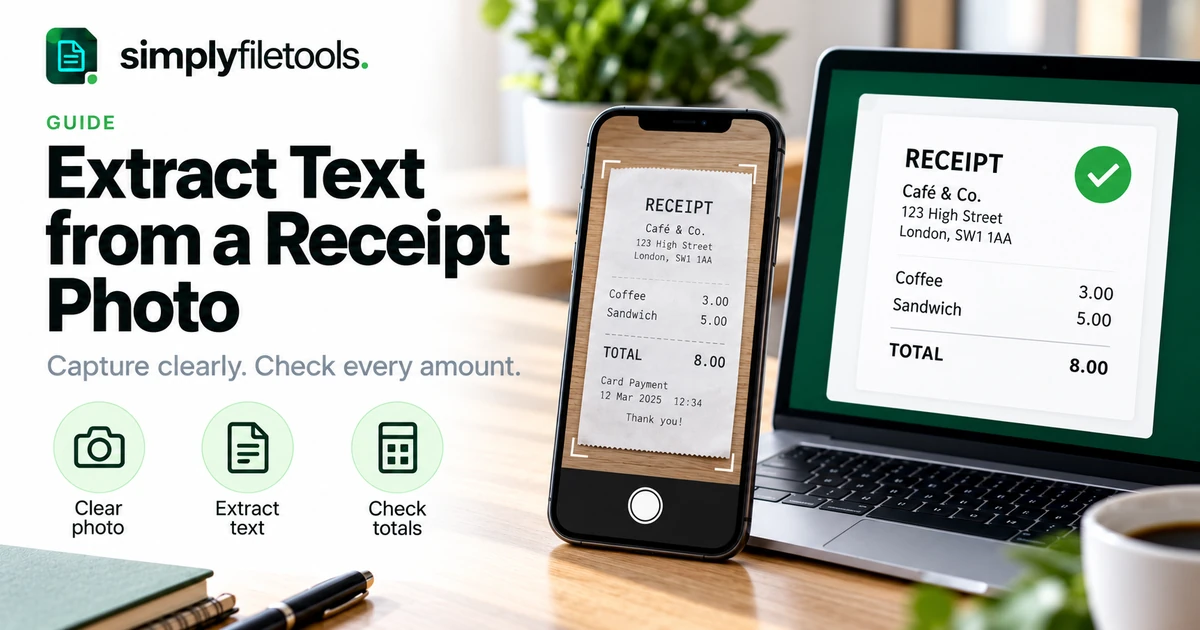
To extract text from a receipt photo, take a clear picture of the whole receipt, upload a supported image to an OCR tool, and compare the extracted wording with the original. Check dates, decimal points, item prices and the final total before using the text in an expense note or another document.
OCR means optical character recognition: it turns visible lettering into text you can copy. Receipts are a demanding source because they often have small print, narrow columns, faded ink and several different totals. A readable result can still contain an incorrect amount. This guide walks through capture, extraction and a practical review.
What receipt OCR can and cannot do
Text extraction can save you retyping a shop name, purchase date, item description or reference. However, recovering characters is different from understanding and validating a transaction.
Do not assume a general image-to-text tool automatically assigns accounting categories, separates every field correctly, reconciles totals or creates an accounting-ready export. Those tasks require their own checks. Keep the original receipt image alongside the reviewed text.
| What you need | Useful output | Check before reuse |
|---|---|---|
| A searchable purchase note | Reviewed merchant, date and total | Each value matches the receipt |
| Item descriptions for a report | Selected extracted lines | Prices stay with the correct items |
| An expense submission | Required fields plus original evidence | Your organisation's submission requirements |
| Records for another application | Its documented import format | Field mapping, currency and date interpretation |
Step 1: prepare the receipt before taking a photo
Place the receipt on a flat surface with a contrasting background. Gently flatten ordinary curls without covering any text. Include the merchant details at the top and the complete bottom section, where totals, payment information or explanatory notes may appear.
Use even light. Move the receipt or phone if a shadow crosses the print or a bright reflection hides a section. Keep the camera lens clean and hold the phone roughly parallel to the paper, rather than photographing from a steep angle.
Do not rely on an image editor to recover lettering that was never captured. If the original print is already unreadable, seek a clearer original or an available digital receipt instead of guessing the missing wording.
Step 2: capture a sharp, complete image
- Frame the receipt so the text is large enough to inspect while all required edges remain visible.
- Tap to focus on the receipt if your camera provides that control.
- Hold the phone steady and take the picture.
- Open the saved image and zoom in on the smallest text.
- Check the top, middle and bottom for blur, glare and cropped characters.
- Retake the photo if important fields cannot be read confidently.
A long receipt may be difficult to capture clearly in one frame. If you need separate overlapping photos, keep their order clear and review each separately. The overlap helps you identify continuation lines, but it can also cause accidental duplication when combining extracted text.
Avoid building a collage of tiny receipt photos. Smaller lettering and mixed orientations make both recognition and human checking harder. For broader capture advice, see how to improve OCR accuracy.
Step 3: prepare a supported file
The SimplyFileTools Image to Text tool supports JPG, PNG and WebP images. Check the current upload requirements on the tool before choosing a file. If your phone saved another format, export a supported copy through a suitable photo application; simply changing the filename extension does not convert the image.
Keep the original photo. In a working copy, crop unnecessary background while retaining all relevant receipt text, and rotate the image so the lettering is upright. Avoid repeated low-quality exports that make small characters harder to distinguish.
If resizing is necessary to meet the current requirements, inspect the resulting file before uploading. A smaller file is only useful if the receipt remains readable. Do not apply aggressive filters that erase decimal points, minus signs or faint item descriptions.
Step 4: extract and review the text
- Open Image to Text.
- Choose your supported receipt image and follow the upload steps.
- Complete any security check shown on the page.
- Start extraction using the controls provided.
- Read the extracted text alongside the original photo.
- Copy or download the reviewed text as TXT for free.
Optional designed document downloads are separate from free text extraction. A designed output does not establish that the receipt values are correct.
The general workflow is covered in how to extract text from an image. Here, the extra work is checking the relationships between descriptions, amounts and totals.
Use a processing method approved for the information on the receipt. If you choose to remove unrelated personal details from an upload copy, check that they are actually removed from that copy. Keep any original evidence your own process requires.
Step 5: check receipt fields in a consistent order
Merchant and purchase date
Confirm the trading name and distinguish the purchase date from a printed return deadline or another date. A short date such as 03/04/2026 can be ambiguous. Use reliable source context before rewriting it with a month name; if the meaning remains unclear, retain it as shown and flag the uncertainty.
Item descriptions and amounts
Follow each item across the receipt. A price may appear far from its description, while a wrapped description can look like a new line item. Check quantity and unit-price lines before treating every number as a separate charge.
Subtotal, adjustments and final total
Identify the labels actually printed. Subtotal, discount, tax, service charge, total, cash tendered and change are different fields. Do not select the largest number automatically. Preserve negative signs and the distinction between a discount line and an ordinary charge.
Currency and references
Retain a currency symbol or code where the source identifies it. A currency symbol alone may not uniquely identify a currency. Keep reference numbers as text when leading zeros matter, and avoid including payment identifiers in a shared summary unless needed.
Worked example: creating a reviewed purchase note
Imagine a fictional receipt with these visible details:
RIVER CAFE
26 October 2026
Coffee 3.00
Sandwich 5.00
TOTAL GBP 8.00
CASH 10.00
CHANGE 2.00
Suppose the extracted text reads “Coffee 3.OO” and “TOTAL GBP 8,00”. Compare those characters with the image rather than replacing every letter O or comma throughout the text. The correct correction depends on what the source actually says.
A concise, checked note could be:
Merchant: River Cafe
Purchase date: 26 October 2026
Items: Coffee GBP 3.00; sandwich GBP 5.00
Total: GBP 8.00
Original receipt: retained separately
The payment tendered is GBP 10.00, but the purchase total is GBP 8.00. Adding the item amounts gives a useful consistency check in this simple example. Agreement alone does not prove every field was recognised correctly, so the source comparison still matters.
This note is a reading example, not an automatic tool export or a substitute for your expense policy. Do not invent a business purpose, tax treatment or missing merchant detail.
Common receipt OCR problems and fixes
Decimal points disappear or become other punctuation
Zoom in on the photo and inspect the relevant amount. Retake a sharper image if necessary. Check every affected value individually rather than applying a global punctuation replacement.
Prices appear in a separate block
Compare the original line order and wrapped descriptions. Reconnect a price to its item only when the relationship is clear. For a complex receipt, a short manually reviewed list may be safer than repairing an ambiguous text block.
The bottom of the receipt is missing
Check whether it was cropped out, hidden by a fold or too blurred to read. Capture the missing section with enough overlap to establish where it belongs. Avoid counting the overlap twice when combining the results.
Faint print produces incomplete words
Try a clearer capture with even light, keeping the original for comparison. If the source remains unreadable, request another receipt where available or mark the information as uncertain. A plausible completion is not evidence.
A phone image will not upload
Check its actual format, file size and dimensions against the current tool requirements. Export a supported image copy where needed. Avoid repeatedly compressing the file until the lettering becomes unusable.
Several receipts become mixed together
Process and label one receipt at a time. Use filenames or a simple reference list to associate each text result with its source image. Keep refunds and separate purchases distinct.
Before you save or share the result
- Match merchant, date, currency and final total to the original.
- Check item-to-price relationships and any adjustments.
- Keep uncertain or unreadable fields explicitly unresolved.
- Remove unnecessary personal details from the shared summary.
- Save a clear link or reference to the original image in your own records.
- Reopen the saved result and check its characters and line breaks.
Plain text is convenient for copying and searching, but it does not preserve the receipt's visual layout. Follow the requirements of the destination system and retain original evidence as appropriate.
Frequently asked questions
Can I extract receipt text for free?
SimplyFileTools provides free extracted-text review, copying and TXT downloads for supported images, subject to its current upload requirements. Review the result before reuse.
Can I upload a receipt photographed on my phone?
Yes, when the resulting file is a supported JPG, PNG or WebP within the current limits. Check that the lettering is sharp and the receipt is complete.
Will OCR calculate or verify the receipt total?
Do not assume general text extraction performs financial validation. Compare the printed fields yourself and use the appropriate process for any calculation or reconciliation.
Why did OCR confuse zero with the letter O?
Small or unclear characters can look alike. Check the original amount in context and correct only what you can verify from the source.
Can I extract several receipts from one photo?
A photo containing several receipts can make order and ownership unclear. Separate clear images are easier to associate with individual purchases and review.
Does extracted text replace the original receipt?
Do not assume it does. Retain the original image and follow the evidence requirements of your organisation or intended use.
Turn a receipt photo into useful, checked text
Start with a sharp image, extract the wording and check each important field against the receipt. Keep item prices, adjustments and payment amounts distinct, and leave unreadable details unresolved.
Try SimplyFileTools Image to Text for a supported receipt photo, or browse the free text extraction tools for other document sources.