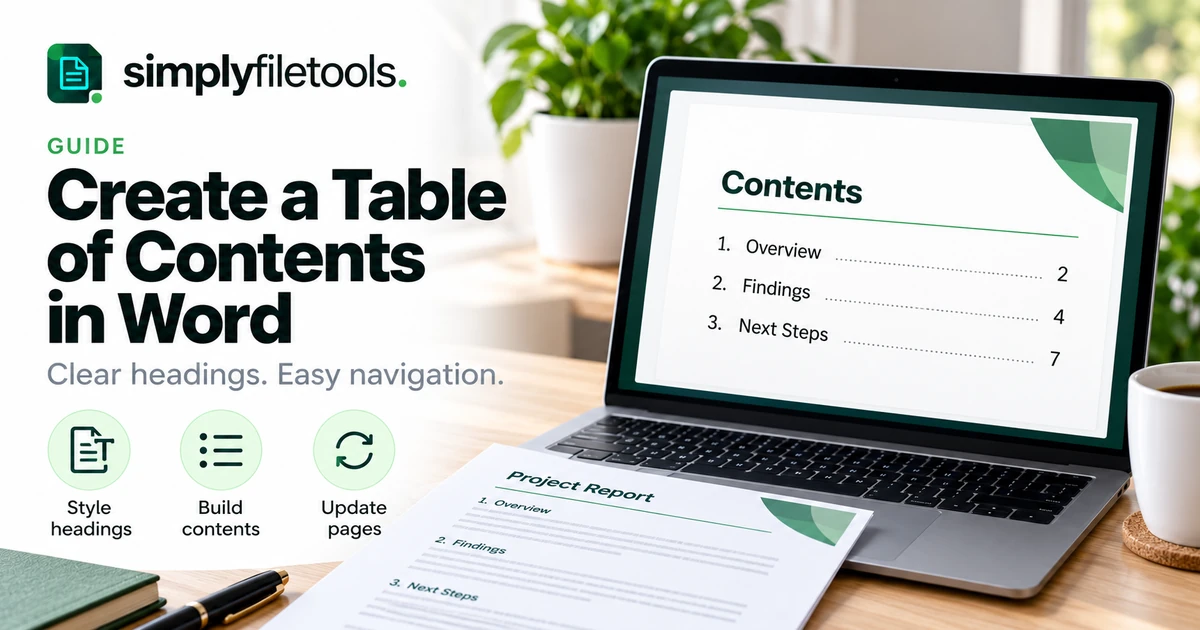
To create a table of contents in Word, apply heading styles to your section titles, place the cursor where the contents should appear, and insert an automatic table from the References tab. Update it after editing so the entries and page numbers match the finished document.
A useful contents page gives readers a route through a report, proposal or other long document. It also exposes problems in the structure: vague headings, inconsistent levels or sections that are difficult to find. This guide covers a practical workflow, a report example and checks before sharing.
Automatic or manual: choose the right approach
An automatic table draws entries from document headings. A manual contents page is typed separately, leaving you responsible for maintaining every entry and page reference. For an evolving document, the automatic option reduces that maintenance work.
Do not confuse this with a data table containing rows and columns. A table of contents is a navigation aid listing document sections. A list of figures or tables serves a different purpose and should be planned separately when needed.
| Document situation | Suggested approach | Reason |
|---|---|---|
| Short letter with one main message | Usually omit a contents page | The extra navigation may add little value |
| Report with several substantial sections | Automatic contents | Readers can locate relevant material quickly |
| Proposal still receiving revisions | Automatic contents with a final update | Section names and page positions may change |
| Required organisational template | Follow its prescribed structure | Consistency may be part of the submission requirements |
Decide based on the reader's task rather than a fixed page-count rule. A compact technical report may need navigation more than a longer, straightforward letter.
Step 1: plan the heading hierarchy
Start with an outline of the main sections. Use descriptive headings that tell readers what they will find. “Delivery risks” is more informative than “Other information” when the section concerns possible delays.
Choose levels according to the relationship between sections, not how large you want the text to look. Main sections belong at one level, their subsections at the next, and smaller subdivisions below those where necessary.
| Example heading | Suggested style | Role |
|---|---|---|
| Project Review | Title | Name of the document |
| Findings | Heading 1 | Main section |
| Customer feedback | Heading 2 | Part of Findings |
| Response themes | Heading 3 | Detail within Customer feedback |
This is an example, not a mandatory report structure. Keep sections at comparable levels reasonably parallel: do not give a minor note the same prominence as the main findings.
For wider layout guidance, see how to format a professional report. You can also review business proposal formatting when preparing a proposal.
Step 2: apply heading styles in Word
In Word, select a section heading and choose the appropriate style from Home > Styles. Use Heading 1 for main sections, Heading 2 for their subsections and further levels only where the outline warrants them. Microsoft's heading-style instructions explain the controls.
Making a paragraph bold or increasing its font size is not the same as applying a heading style. Keep ordinary body paragraphs as body text, and avoid applying a heading style to a whole paragraph merely to emphasise it.
- Save a working copy before making broad formatting changes.
- Style the main section headings first.
- Style the subsections consistently.
- Check that the document title and short callouts have not been treated as main sections accidentally.
- Read the outline from beginning to end to confirm it reflects the argument.
If the standard heading appearance does not suit your design, adjust the style rather than formatting each instance separately. The goal is a consistent structure with a suitable appearance.
Step 3: insert an automatic table of contents
Place the cursor at the intended location, commonly near the beginning after the title material. In desktop Word, open References > Table of Contents and select an automatic option. Microsoft's insertion guide covers supported versions, including web variations.
Check the generated entries against your outline. Menu names and available controls can vary by platform and edition; use the instructions for your version if the ribbon differs.
Give the contents enough room without forcing a particular length. If it occupies several pages, assess whether every displayed level helps the reader. A complete list of every small subsection may be less useful than a focused overview.
Step 4: make the contents easy to scan
Keep typography restrained. Entries at the same level should look consistent, and deeper levels should be visibly subordinate. Allow long headings to wrap cleanly without making the page-number column difficult to follow.
In supported desktop versions, References > Table of Contents > Custom Table of Contents offers settings for displayed levels, page numbers and tab leaders. Use the associated TOC styles for consistent entry formatting; see Microsoft's customisation instructions.
A dotted leader can guide the eye from a heading to its page number, but decoration should support scanning. Avoid typing repeated dots or spaces to imitate alignment: the result is difficult to maintain when wording or layout changes.
Before changing the font size to squeeze everything onto one page, reconsider the number of levels shown. Readability matters more than meeting an arbitrary one-page target.
Step 5: update after editing
After revisions, select the contents and use References > Update Table. Choose Update entire table when headings have been added, renamed or reorganised. Update page numbers only refreshes page references without incorporating heading-text changes.
Microsoft's update instructions explain these options. Do not assume the generated contents will always refresh itself before you share the document.
Correct section names in the document itself, then regenerate the contents. Editing generated entries directly creates a fragile result because a later update can replace those changes.
Worked example: a project review report
Imagine a fictional report with four main sections: Overview, Findings, Recommendations and Next Steps. Findings contains two subsections: Customer Feedback and Delivery Performance.
- Apply Heading 1 to the four main sections.
- Apply Heading 2 to the two subsections within Findings.
- Insert automatic contents showing the first two heading levels.
- Read the result as a reader looking specifically for delivery information.
An illustrative contents list might look like this:
Overview — page 2
Findings — page 4
Customer Feedback — page 4
Delivery Performance — page 6
Recommendations — page 8
Next Steps — page 10
These page numbers are fictional. Word must generate the actual references from your document. Suppose you later rename Delivery Performance to Delivery Delays and add a new subsection. Update the entire table, then confirm both changes appear.
Finally, ask whether the wording helps someone who has not read the report. If “Findings” includes unrelated material, reorganise the source sections rather than trying to disguise the problem on the contents page.
Common table-of-contents problems
A heading is missing
Check that the source paragraph has the appropriate heading style, that its level is included in the displayed range, and that the table has received a full update. Visual similarity alone does not establish that the style is correct.
Ordinary text appears as an entry
Inspect that paragraph's style. If it was accidentally styled as a heading, restore the appropriate body style and update the contents. Check nearby paragraphs for the same mistake.
Page references are out of date
Complete the layout changes, update the contents and check the final file. Adding a cover, moving a table or changing paragraph spacing can shift later material.
A renamed section still has its old name
Use an entire-table update rather than a page-number-only update. Confirm that you renamed the actual source heading, not just its generated entry.
The page looks crowded
Review long headings and unnecessary detail. Consider showing fewer levels where that still provides useful navigation. Do not solve crowding by making text uncomfortably small.
Changes disappear after updating
Check whether you edited generated text directly. Make wording changes in source headings and appearance changes through the relevant styles or table settings.
Check the file you will actually share
Review the final document after all major edits. If you export a PDF or use another application, open that exact output and check the visible contents, page references and any navigation links you intend readers to use.
- All expected main sections are listed once.
- Subsections appear beneath the correct parent section.
- Wording matches the document headings.
- Page references lead to the intended sections.
- Long entries wrap without obscuring page numbers.
- The contents page remains readable at normal viewing size.
Plain-text extraction has a different purpose. The SimplyFileTools Word to Text tool can recover wording from supported DOCX files, but TXT does not preserve an automatic Word contents field or its page layout. See the DOCX-to-TXT guide when you need reusable wording rather than a navigable report.
Frequently asked questions
Why is bold text missing from my contents?
Bold formatting alone does not make a paragraph a structured heading. Apply the correct heading style and refresh the table.
Should I include every heading level?
Include enough detail to help readers find material. A shorter overview may be clearer than listing every minor subdivision.
Can I type page numbers manually?
You can maintain a manual contents page, but every layout change then requires your own checks. An automatic table is generally more practical for a changing report.
Do I need to update after changing a heading?
Yes. Use an entire-table update so the heading change is reflected, then check the result.
Can Word for the web create a table of contents?
Microsoft documents a web insertion workflow. Controls and customisation options can differ from desktop Word; consult the guidance for your version.
Will converting DOCX to TXT keep the contents working?
No. Plain text does not retain Word's automatic field behaviour or the document's designed pagination. Keep the editable document when those features matter.
Build navigation from a clear structure
Plan the hierarchy, apply styles consistently, insert automatic contents and refresh it after revisions. The final check is whether a reader can use the shared file to find the right section quickly.
Browse SimplyFileTools document templates for layout ideas, then maintain the heading structure and contents in an editor that supports them.
Ready to try it?
Preview professional document designs before choosing an optional download.
Explore templates →